This guide describes how teams and coaching businesses can easily onboard, manage and communicate with their athletes.
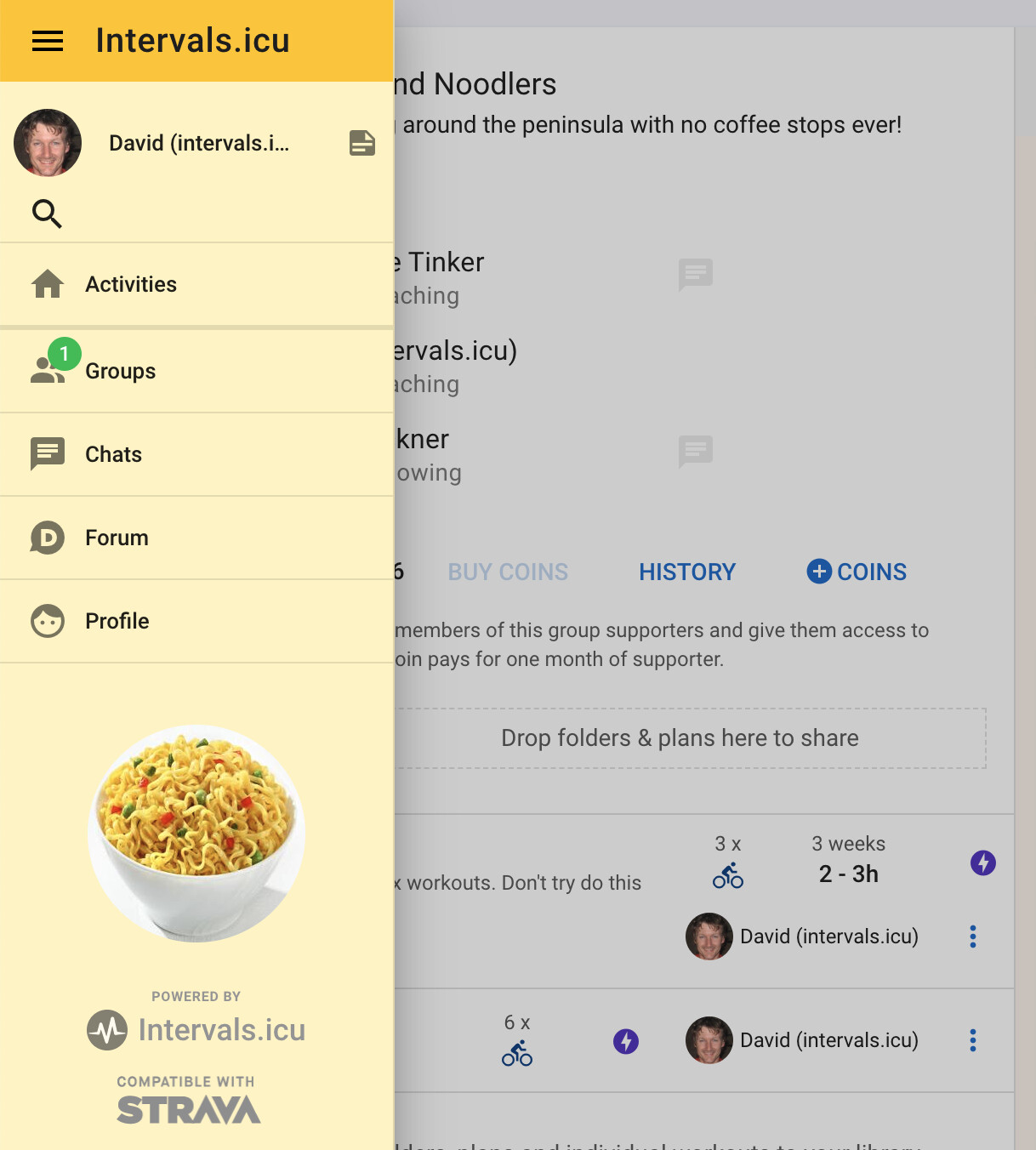
Intervals.icu has groups (similar to WhatsApp) for easy communication and sharing of workouts and training plans:
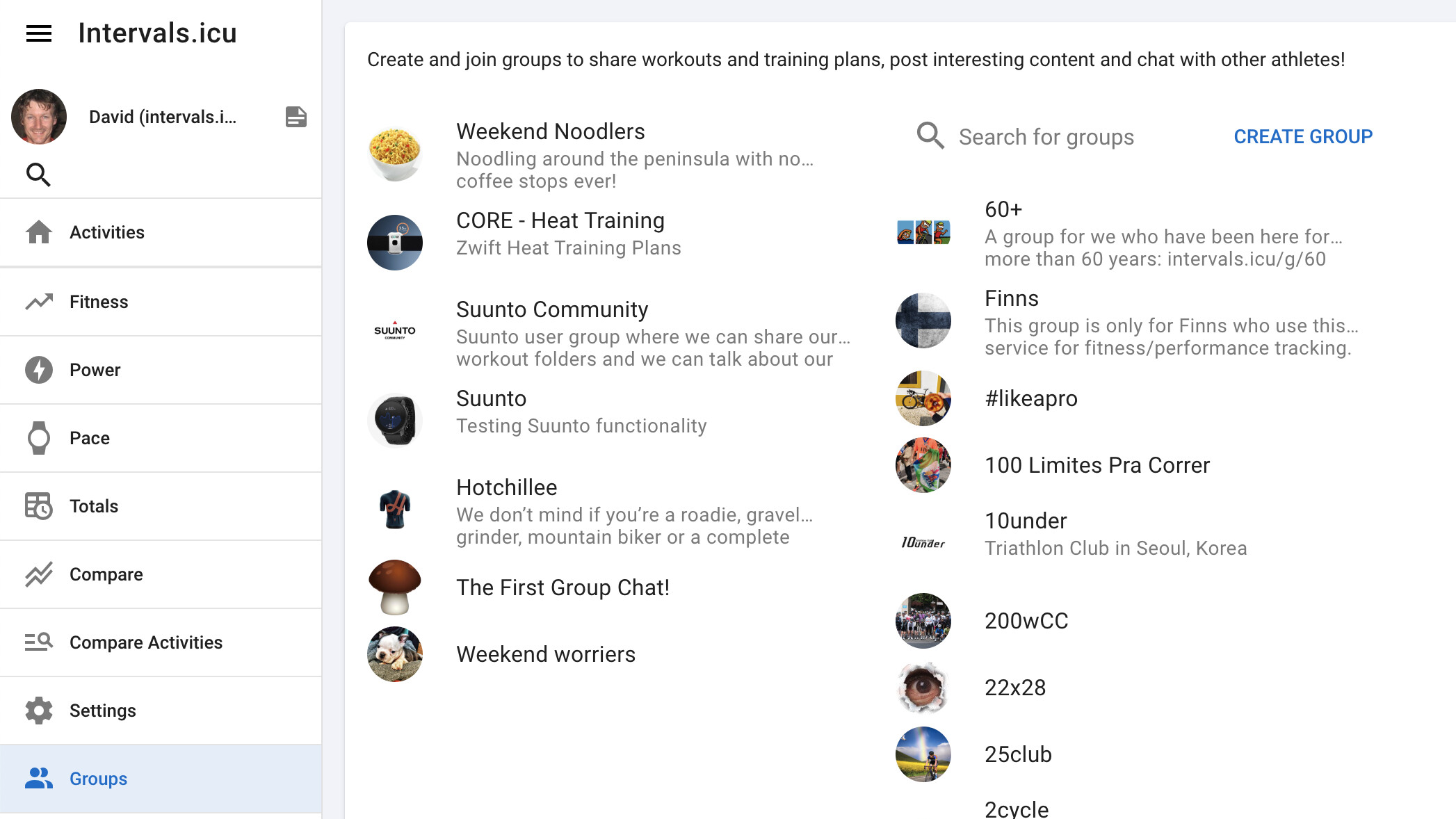
A group can be set as a coaching group. A coaching group automatically grants coach access to all users with “Member” role in or added to the group, to all group admins and coaches. Note that this is a premium feature, you need to be a supporter to create a coaching group.
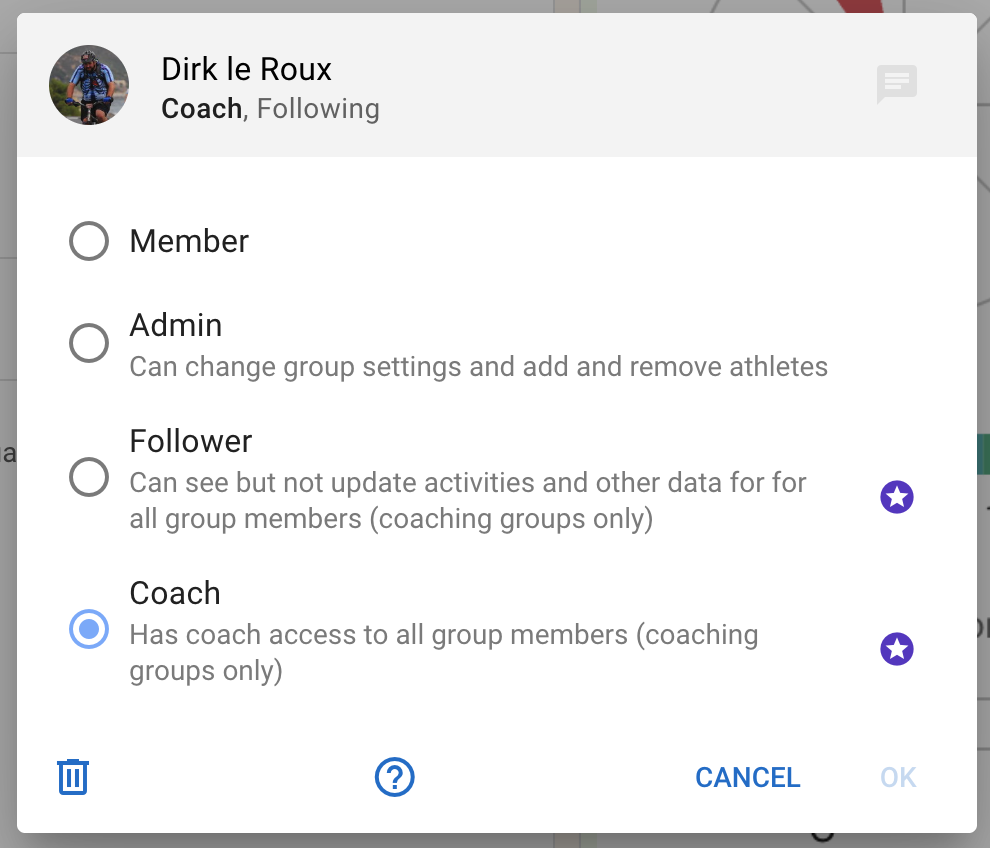
You can have multiple coaching groups each with different coaches. Group admins can add/remove users (athletes and coaches) and set roles within the group. Athletes and coaches can be in multiple groups. The “Follower” role grants read-only access to group members.
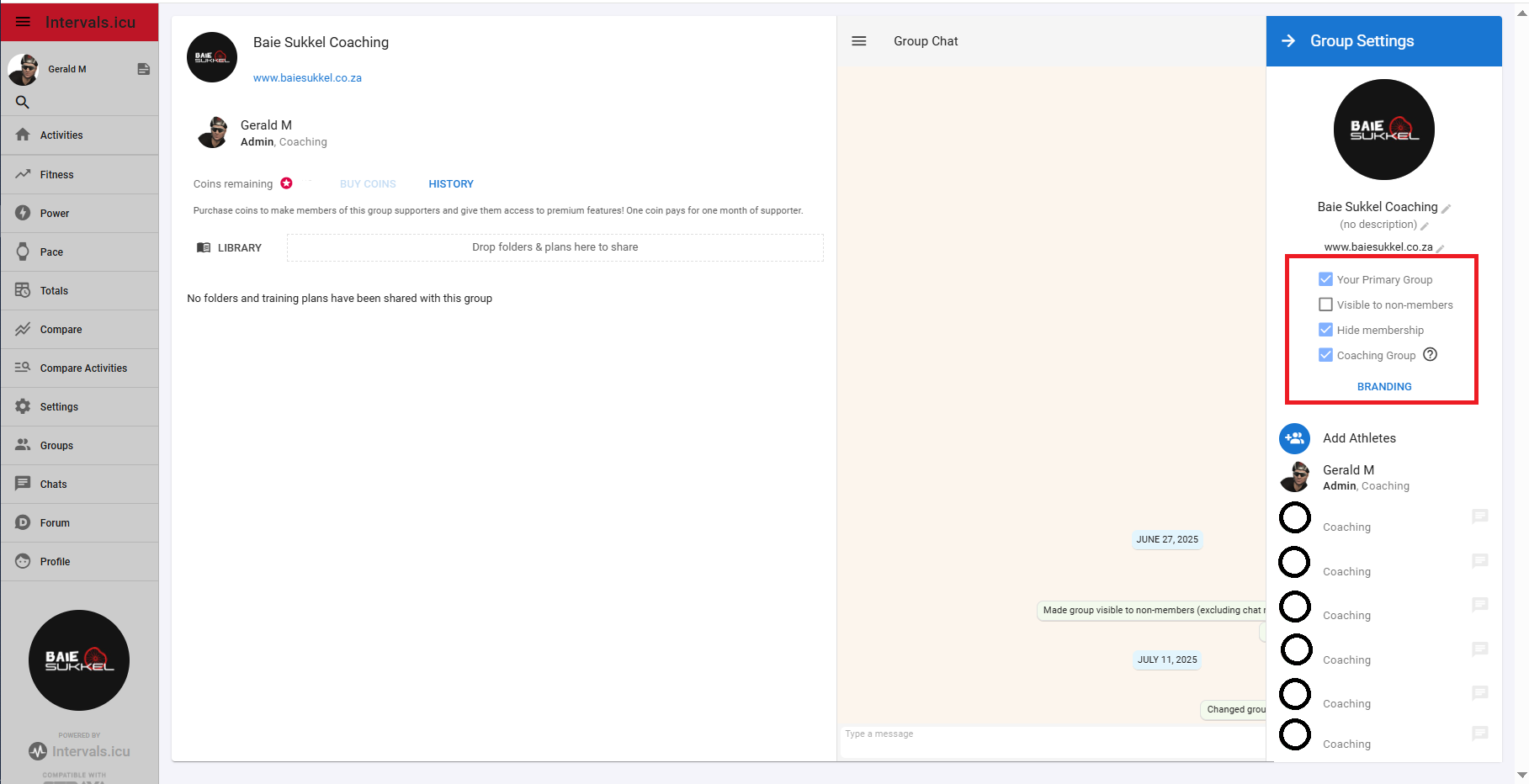
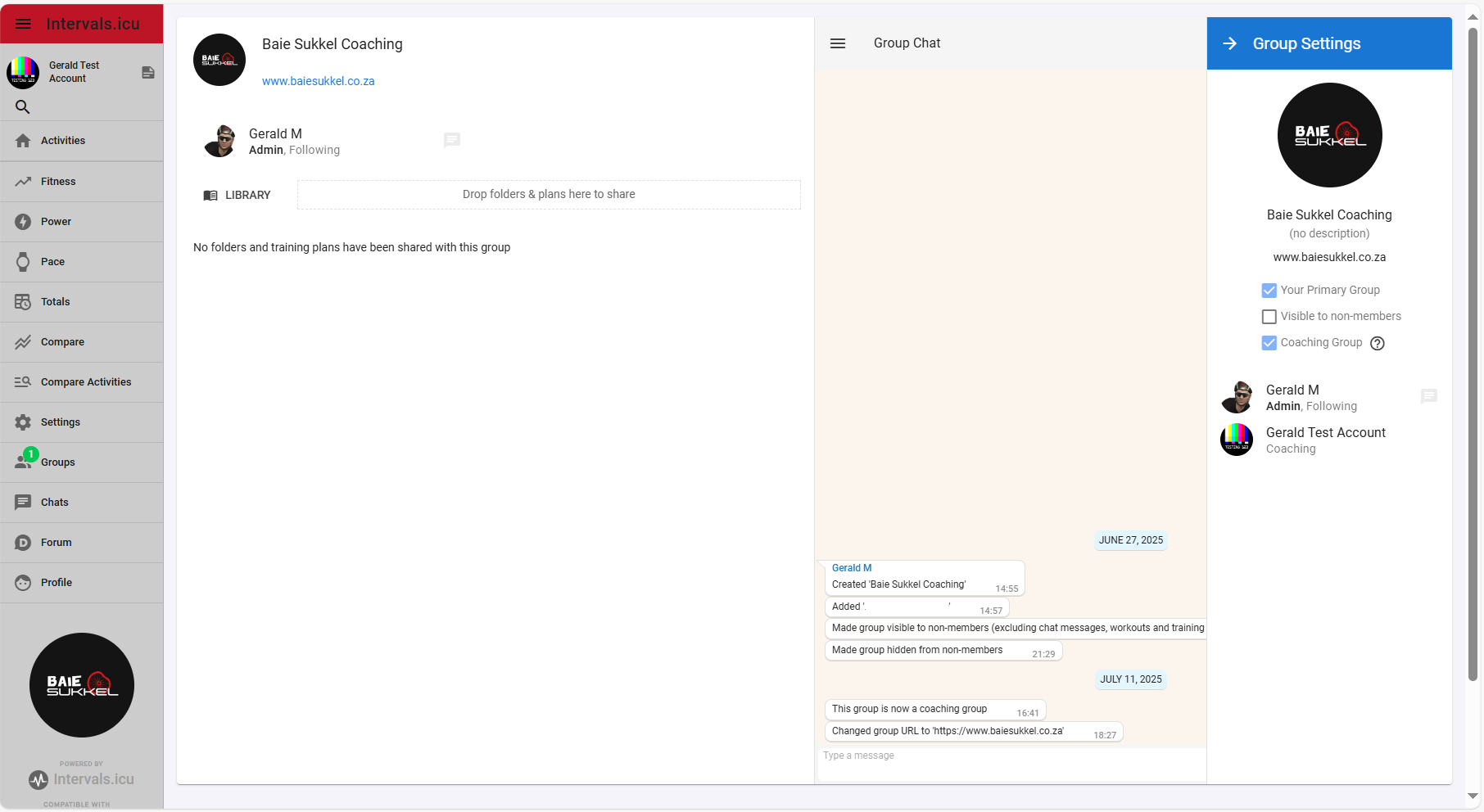
Groups can have branding which is applied to Intervals.icu for group members:
Members added to a coaching group or already in a group set as a coaching group are sent message from the admin asking them to accept:
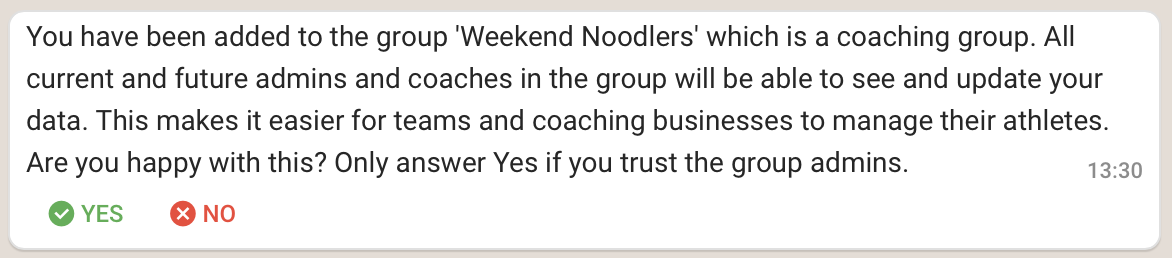
If they answer “No” or do nothing they remain in the group but no additional access is granted.
If they answer yes then all the group admins and coaches are granted coach access. The member receives a chat message from each coach:

Onboarding process summary
- Create one or more coaching groups or make an existing group a coaching group
- Add coaches to groups and set their role to “Coach” (they must be supporters)
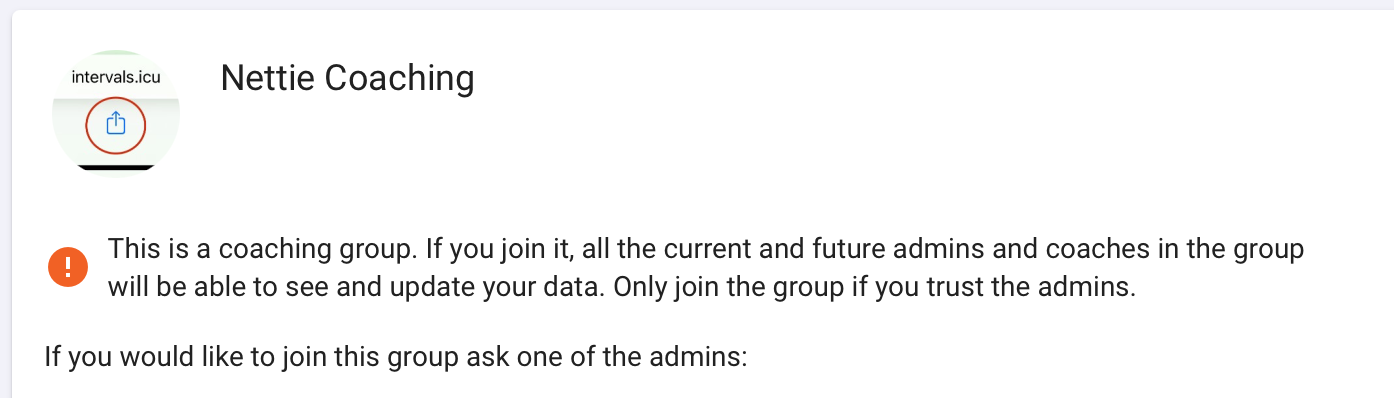
- Ask athletes to register on Intervals.icu and send them links to the groups (e.g. https://intervals.icu/g/weekend-noodlers) you want them to join. They just have to click one of the admins and ask to join
- Accept the join request messages
- Athletes will receive the “you have been added” message and need to accept to complete the process
- You can also use the “Add Athletes” button in group settings but that will not show athletes who have set their profile to be “Hidden”
Athletes added to a coaching group are automatically assigned coaches from the group once they accept the invitation to join the group. The coaching relationships are updated when coaches are added to or removed from the group or the athlete leaves.
Edit: 21st Nov 2025: You can now setup all the athletes you coach in a group at once: Setup multiple athletes at once
Updating group settings
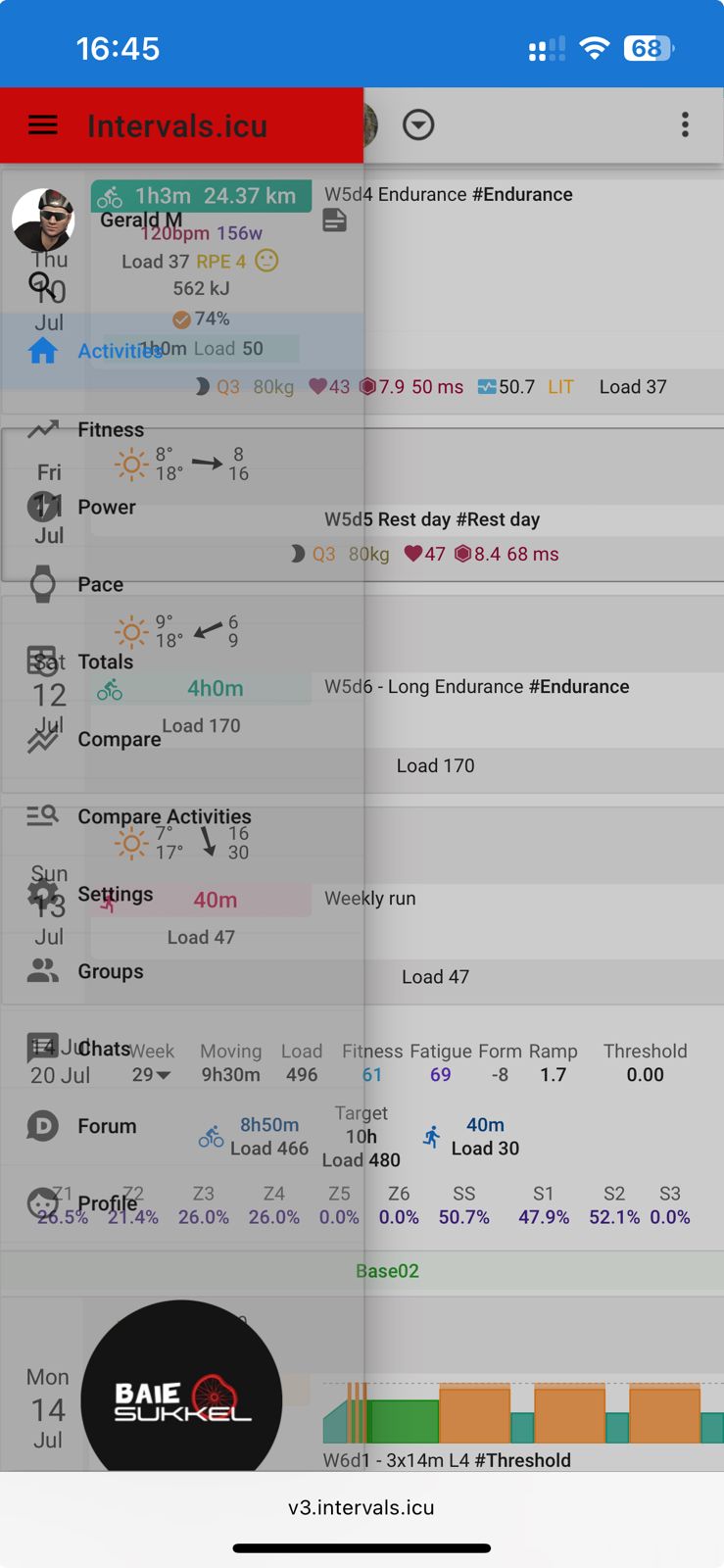
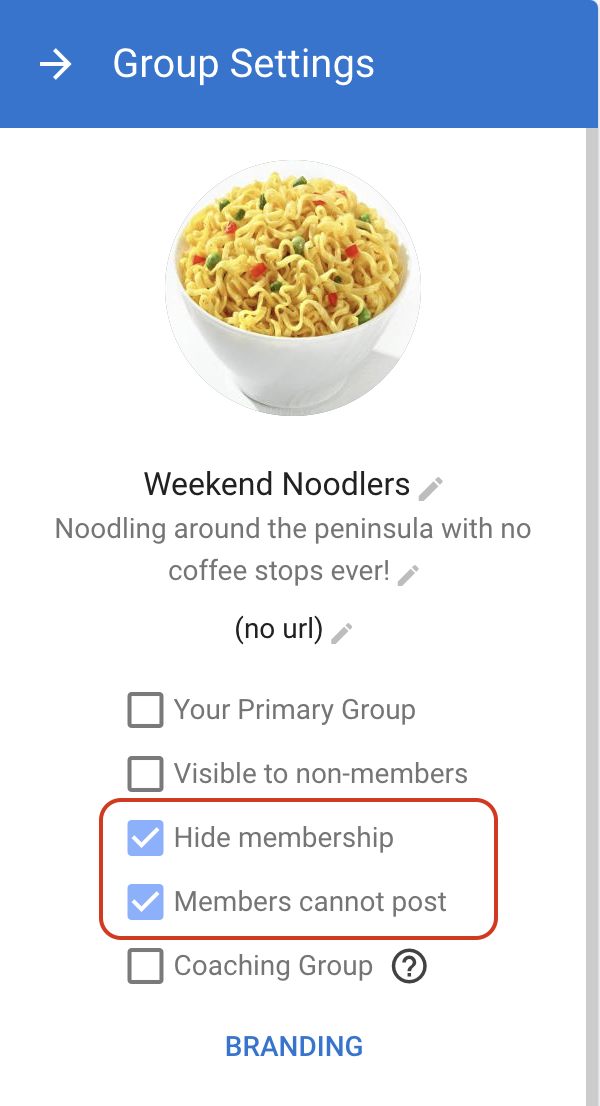
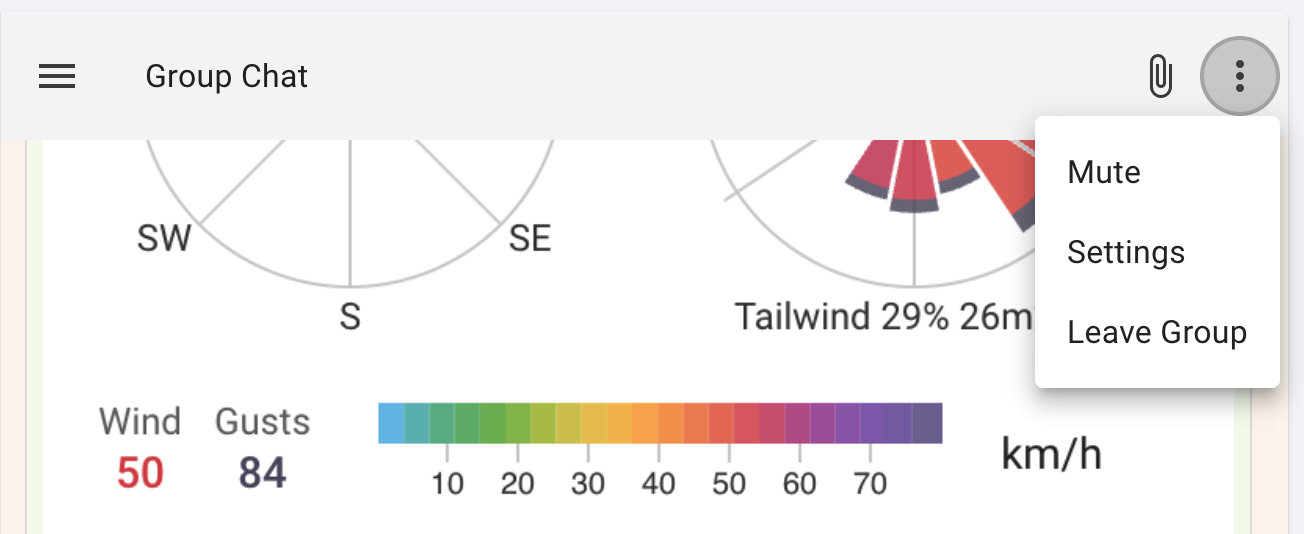
Click the dot dot dot menu on the right hand side of the group chat and choose “Settings”:
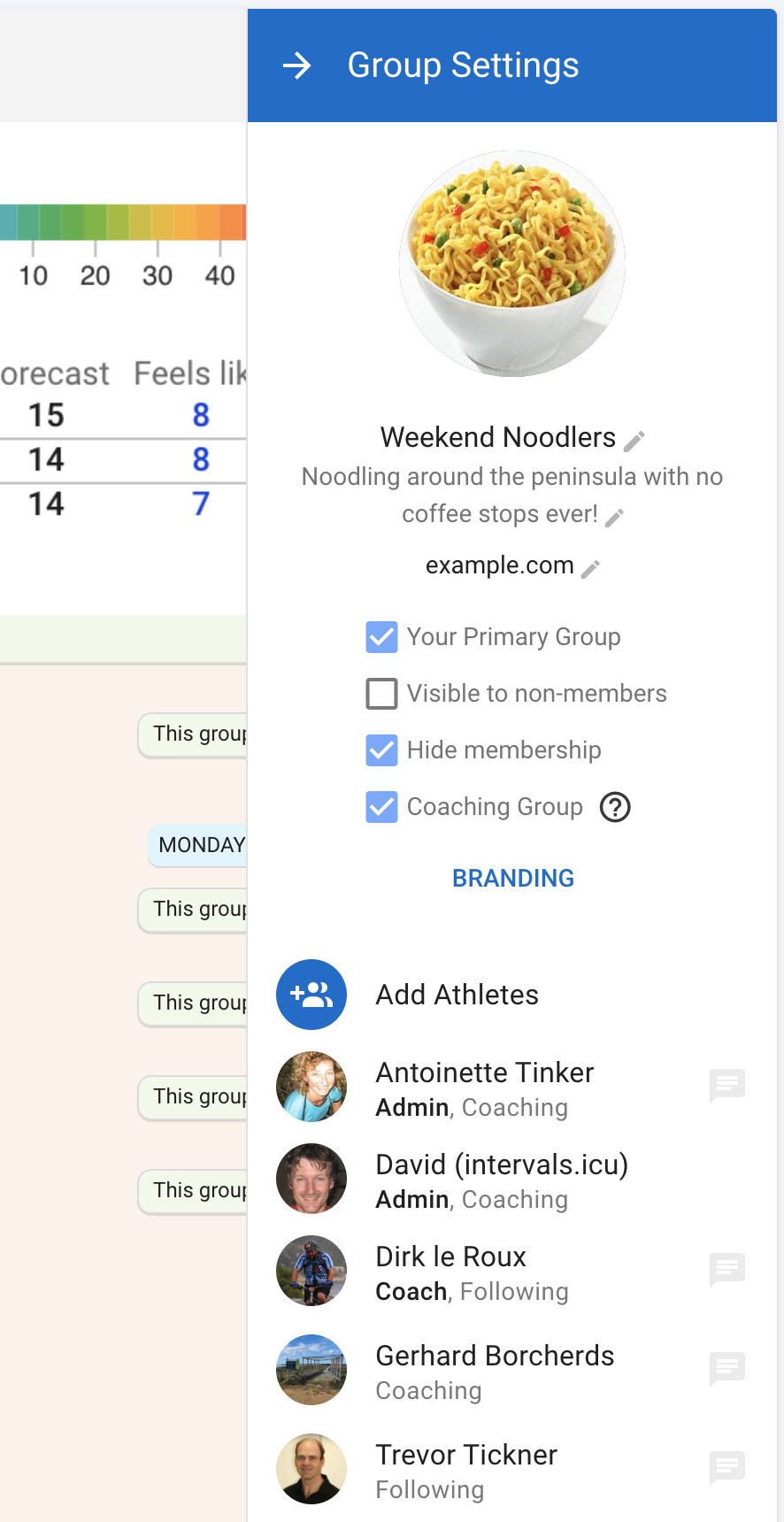
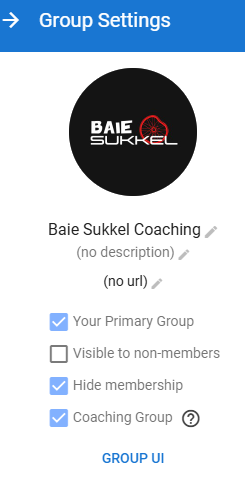
All members can use “Your Primary Group” to toggle the group branding on/off. Only admins can change the other settings.
Ticking the “Visible to non-members” box will make the group show up in search so people can find it and ask to join. “Hide membership” hides the group membership list for members, they can only see who the admins and coaches are.
Click member tiles to change roles, remove people etc..
Tick “Coaching Group” to upgrade the group. You should assign coach role to your coaches first.
Future plans
- Soon it will be possible to purchase coins for the group with each coin granting supporter status (access to premium features like weather analysis) to a member for 1 month
- Filtering the /athletes tabs by group, along with the current tag filtering
- Pushing settings (zones, charts, activity summary layouts) and so on down to group members