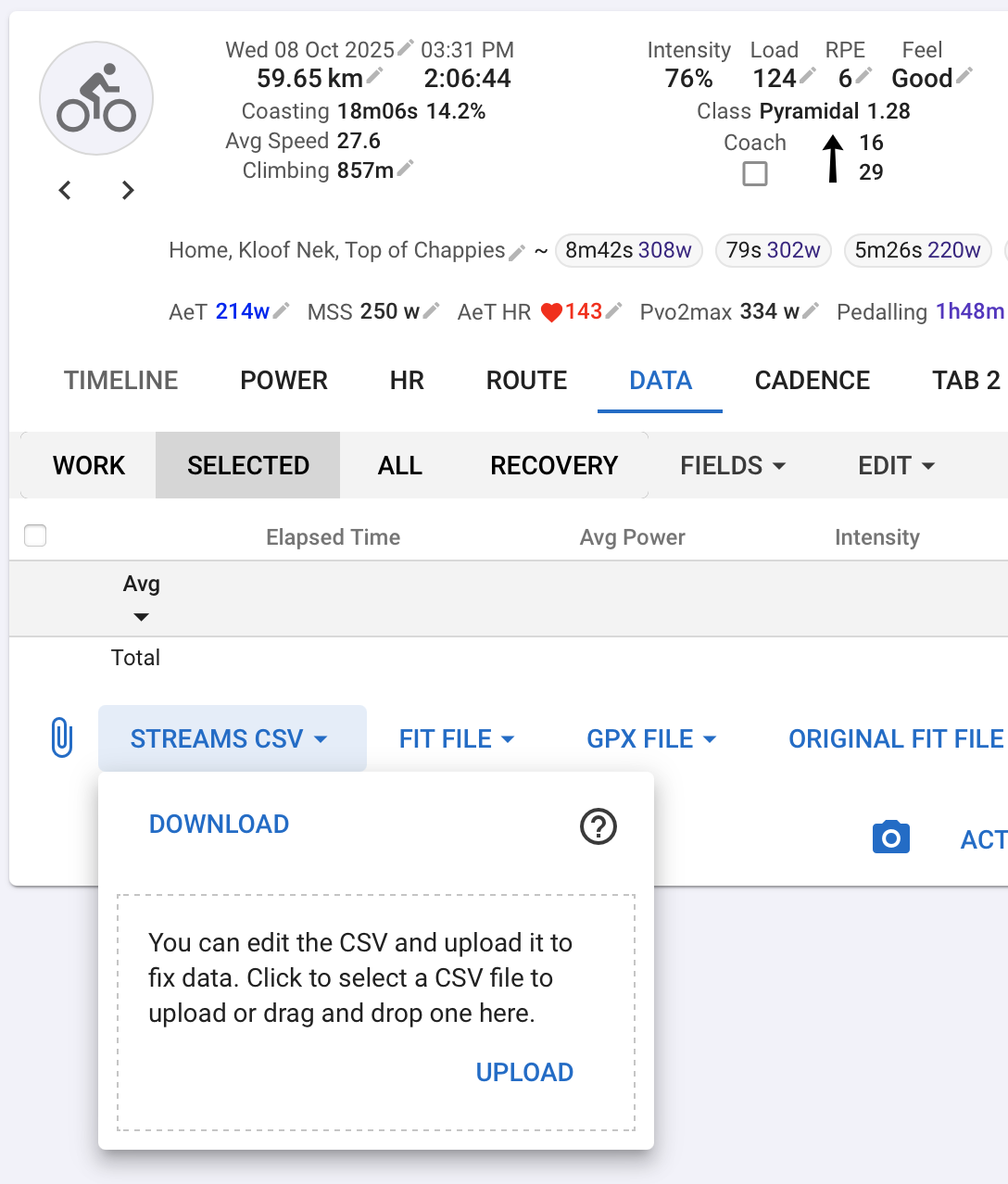
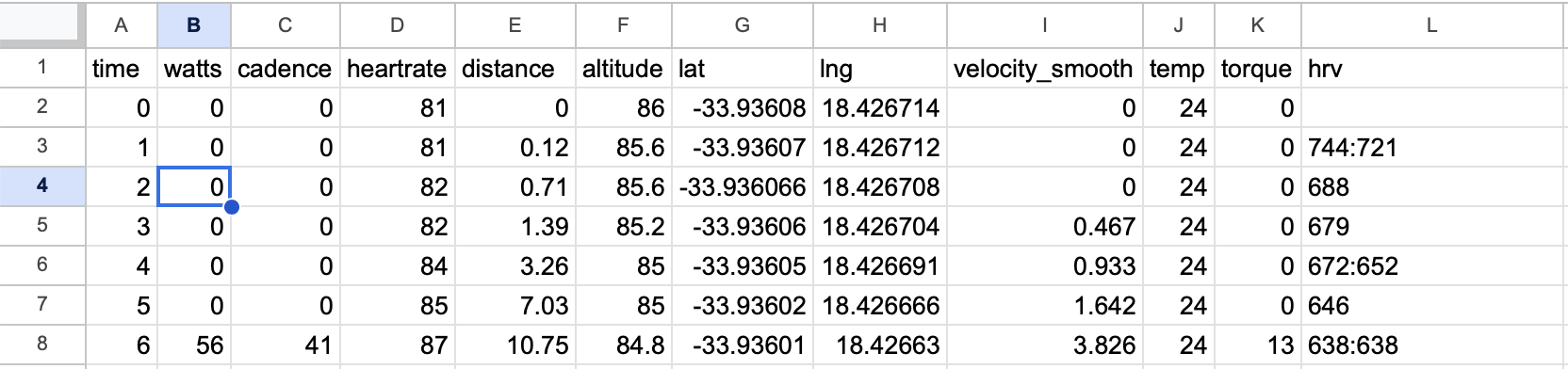
All Intervals.icu users can download a CSV of the streams (power, heart rate, cadence etc.) for an activity for analysis in Excel, Google Sheets etc., on the activity data tab. Supporters can also upload the CSV to add or edit data.
Google Sheets
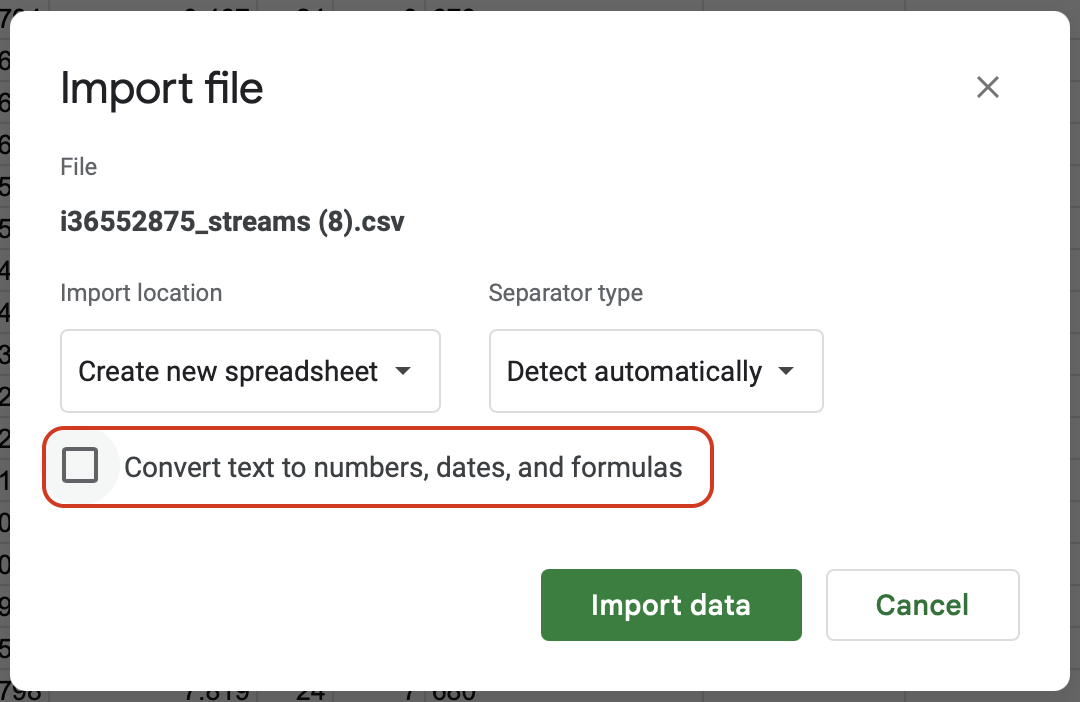
Do File → Import and select the CSV file. If the activity has any array valued streams (e.g. HRV or a custom stream using array values) then you need to untick the “Convert text to numbers, dates and formulas” box:
Once the data has loaded, select all the normal columns and do Format → Number and choose any number format. This will convert the text to numbers. Then do Format → Number and choose “Automatic” to restore automatic number formatting.
Do File → Download and choose .csv to get a file to upload to Intervals.icu.
Uploading a CSV
All stored (non-computed) streams can be edited, including custom streams. You can add rows to fill in missed data and remove rows to cleanup junk.
The column headers in the CSV need to match the names of built in streams or the code of custom activity streams. You can create a custom activity stream and use its code in the CSV to pull any data into Intervals.icu.
Blank cells are imported as null values. If all values for a stream are null then it is removed from the activity.
Array values must be packed into a single cell separated with colons:
hrv
635:646
The time column holds seconds since the start of the activity with the first row 0.
If you do not change the number of rows in the CSV then only columns you include are updated.
If you change the number of rows, then you need to supply all the columns. Any missing columns are removed from the activity.
 )
)