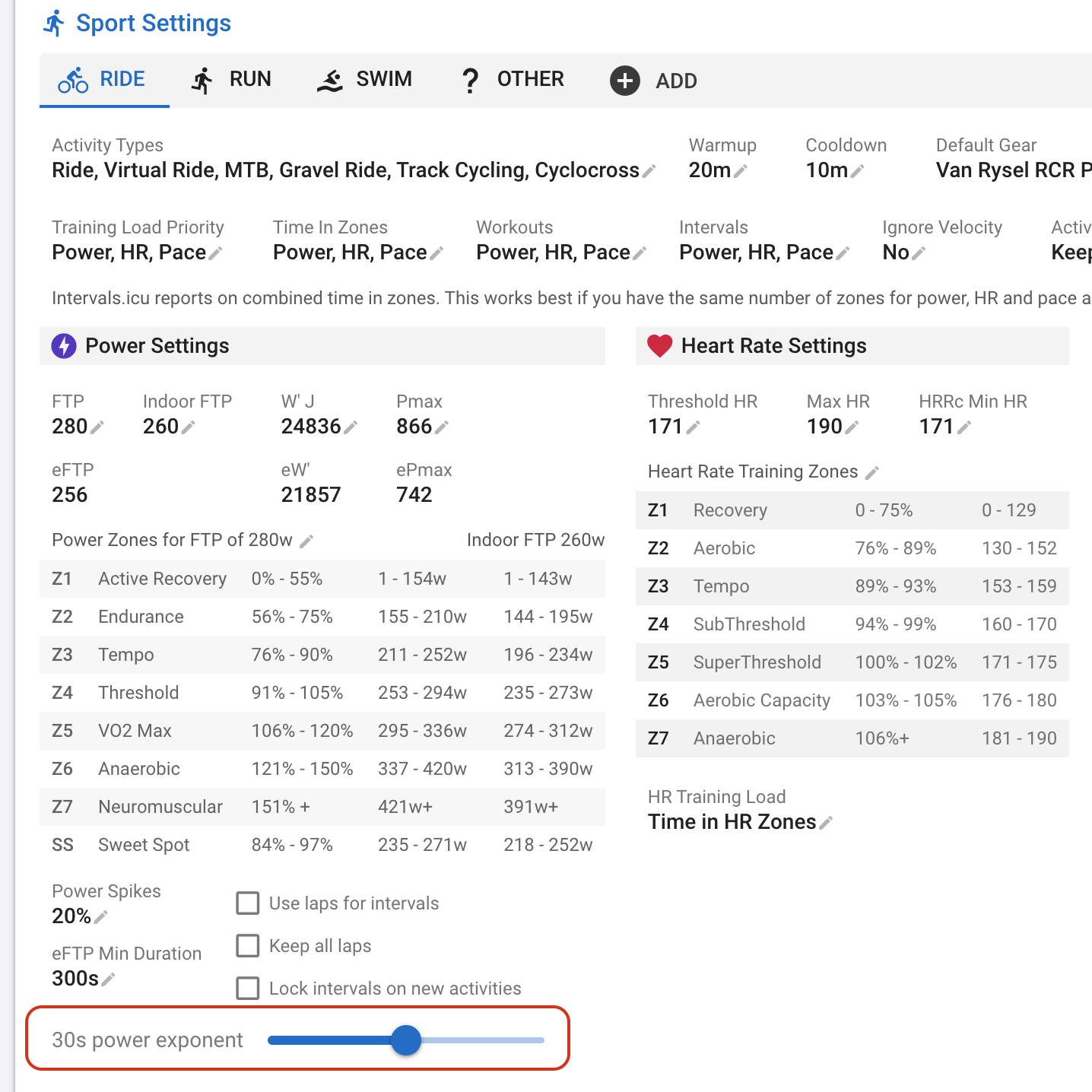
You can now set this in /settings per sport. This is the default for new activities:
The new button covers the pop up menu
It doesn’t actually work. It’s happening to me and multiple athletes. I set the bar to 0, but in new activities it still shows the old default value.
Ack, sorry this is fixed for the next deploy (likely Thursday AM).
1 Like
Thanks for all the feedback, keep them coming! We are always aiming for great usability and that is our priority.
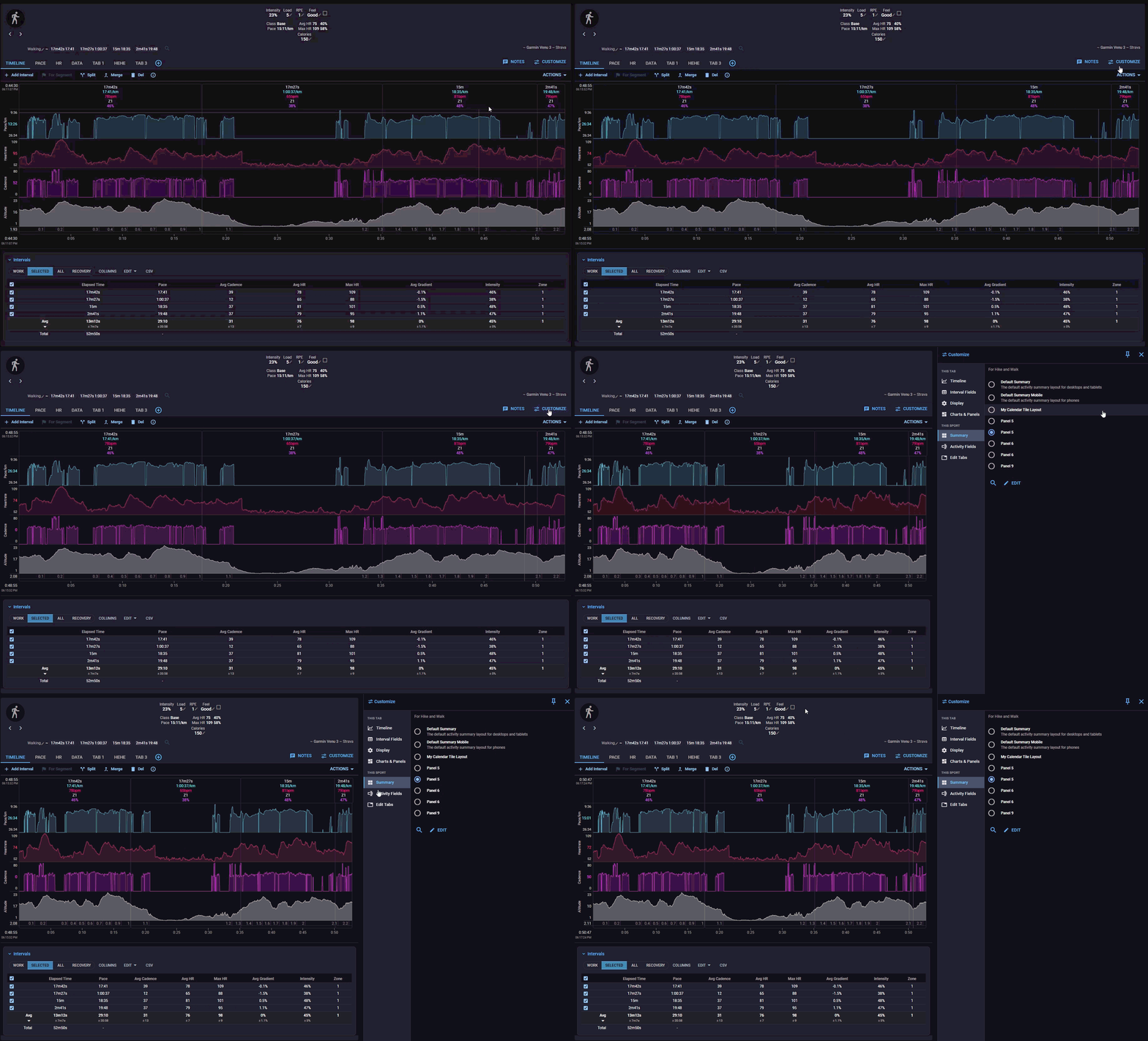
We have made some changes how the drawer behaves, likes suggested. On a wide enough screen the Notes and Customize panels now sit beside the page. The page is laid out again in the space that is left, charts included, so you can tweak a setting and watch the chart change next to it. Where the screen is too narrow for both, the panel still slides over the page as before.
If you would rather always have the panel beside the page, there is a pin in its header. Pinned, the panel pushes the page aside regardless of width. The pin is remembered per panel. It is only offered on tablets and desktops, since on a phone there is no room to split.
Two small things came along with it:
- The Customize button now closes the panel as well as opening it, like Notes.
- Keyboard users: while a panel is beside the page, Tab moves on into the page instead of staying inside the panel.
1 Like
The Route and Data tabs now follow the rest of the activity page. These changes are live, reload your browser to get the latest changes 
Data: the intervals table is the same Intervals card as on the Timeline tab. Attachments and downloads are in a Files card, ids and power meter details in a Details card.
Route: The Map -button pops the route map out and back in. The activity table has its own header row with Actions, Columns, Show All and CSV, and the map settings, progress fields and columns live in the Customize drawer.
3 Likes
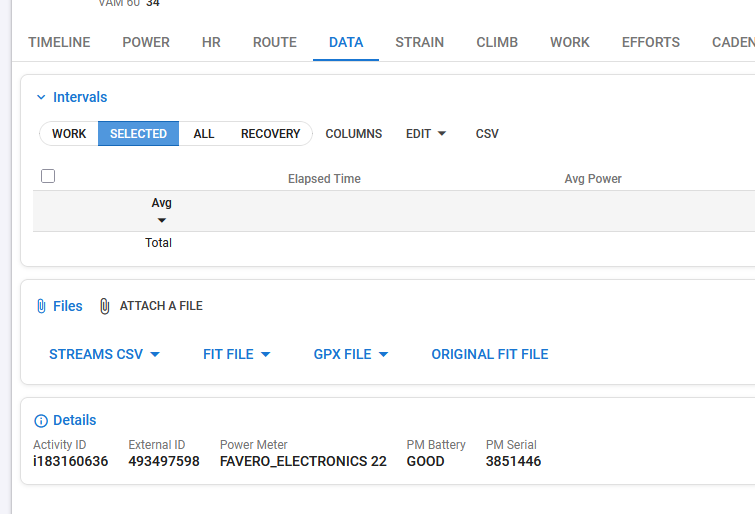
In the power meter details, the crank length used to be displayed. Now, it has disappeared. It was useful to have it there, as it allowed us to immediately notice if someone had forgotten to enter the crank length.
Even on the summary page, it doesn’t show up anymore.
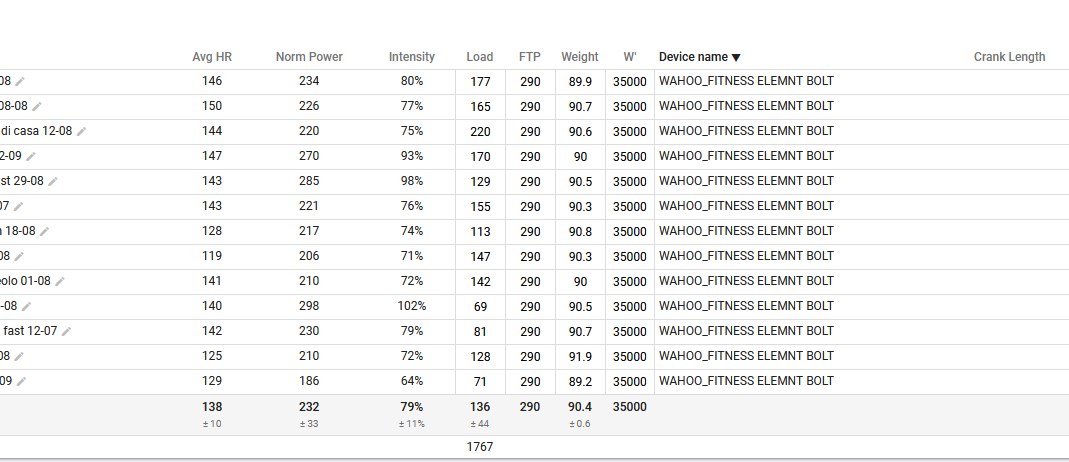
I’m 100% sure that it was visible until last week. I also think it should be a mandatory parameter to have there in intervals.

I think it might be related to Garmin. Do you have a Garmin device? I noticed that only the Wahoo athletes (and all of them) seem to have this problem.
I have a Garmin too, and everything is there for me—in both views.
AFAIK, it can depend on the sensor connection protocol. ANT+ always reports crank length, but BLE can be tricky.
Crank length is there for me and my athletes, using pedals and crank-based PMs, on Garmin and Wahoo devices.
As @MedTechCD has mentioned, especially with dual sided PMs, to check for Ant+ vs BLE on Garmin devices( not sure about other head units). Some Cycling Dynamics metrics like pedal smoothness, torque effectiveness, and power phase do not show when connecting a power meter via BLE instead of ANT+.
I don’t think that’s the issue in this case. The crank length field is definitely present in the FIT file and contains the correct value, I checked the FIT files directly.
The problem occurs specifically with Wahoo units, and it affects all of the Wahoo units I’ve checked. So perhaps the issue is related to how Intervals.icu is reading or parsing the FIT files from Wahoo devices, rather than the data actually being missing from the file.
Are you sure it’s in the fit file? Wahoo is really bad at saving details in the fit file (crack length, battery level)…
In my wahoo files it isn’t encoded in the fit file, but it’s in the Garmin files… but may also depend on the manufacturer of the PM…
Yes, I’m sure. The crank length is present in the FIT file, in the device_info message from the power meter.
For example, in an Assioma/Favero file it appears as:
crank_length: 1650
The FIT unit is mm × 10, so this corresponds to 165.0 mm.
I checked the FIT files directly, and the field is there with the correct value. That’s why I suspect the issue is not Wahoo failing to save the data, but rather how Intervals.icu is parsing the device_info message from Wahoo FIT files.
You can check it even on https://www.fitfileviewer.com/

1 Like
This rework is a huge improvement in usability! Thanks!
Regarding locking the marker in position, perhaps this is a related issue. On my phone, if I position the marker where I want it, then try to scroll up to see the controls, the marker will always move.
Currently, touches in the the right border outside either boundary of the charts move the marker.
What if you prevented touches in the left and right border areas from moving the marker? This way the marker could be positioned where you want it, and then you could tap and hold in either boundary area outside the chart to scroll up and down, to get to the controls, to view charts above/below what’s currently visible, etc…
I have a wahoo roam and speedplay power pedals, in the “Data” tab and Details section I don’t have anything related to power meter 

The fit file contains the data and it is synced to intervals directly from Wahoo
probably because the “device type” for me is not “bike power” like in your case but “11”

that should be the numeric value for the power meter
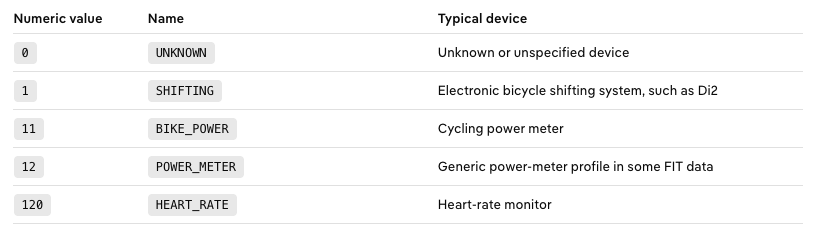
same for my fitbit Air that has the “120” value in the fit file
Could the Notes field automatically receive focus when opening the Notes?
Currently, we have to click inside the typing field. If we simply start typing after opening Notes, we may accidentally trigger other keyboard shortcuts because the field isn’t focused yet.
I think it would be more intuitive if the text field were automatically focused when the Notes window opens, so we could just start typing.
1 Like