My Resting Hr is just silly. It has come from my Garmin watch which I am not wearing. I have switched off the “Take wellness data” under “Connections” to stop that.
However Io want to correct the historic figures. It I select Settings/Basic settings/Resting HR and edit it it offers “Apply to all existing activities”. Hopwever when I select that nothing changes and I still have all the nonsence ex Garmin watch settings in my activities.
I can’t alter it from teh activities/edit screen, as it is not a field that is shown.
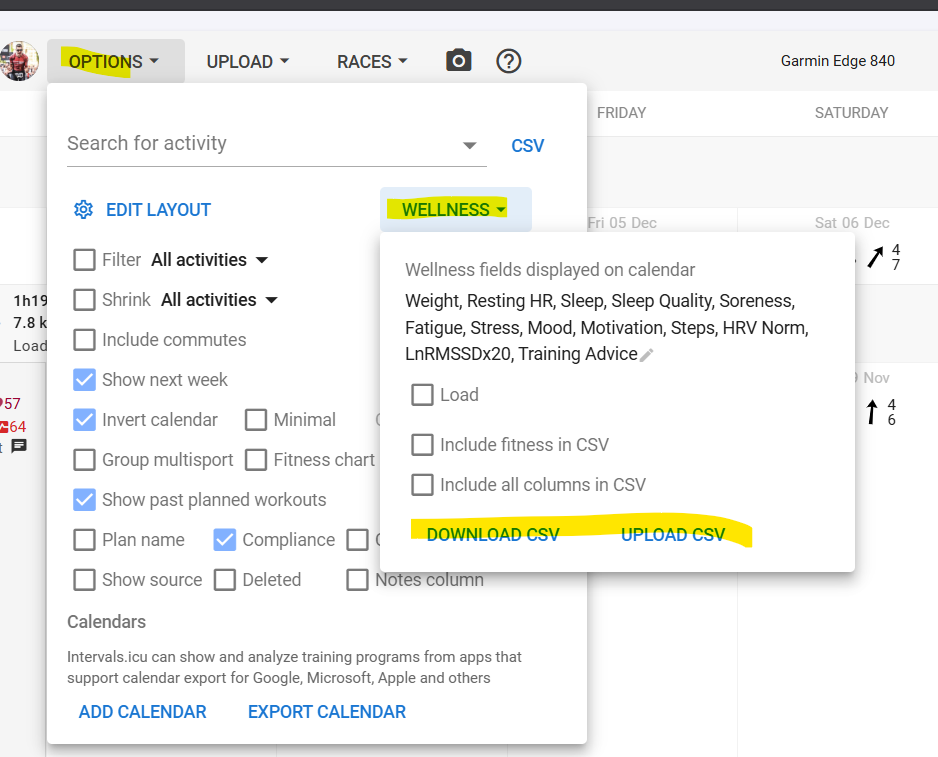
RestingHR is a wellness field. Export the csv file, delete all columns except the date and restingHR columns, then save. Change your restingHR values for the date range, save. Make sure the date is yyyy-mm-did format then import the csv.
Just to be clear… I am re-importing ONLY the date and ‘Resting HR’ columns, so that the other columns on line remain unchanged- Is that correct?
Also where is the “Import csv” option. I can only find ‘upload’ which wants fit files, (and others) but not CSV. I have searched the help/forum for import but it is not obvious. Thanks
Thanks i was looking at the Activities in list format rather than calandar format and so could not see an option, “Options”.
I am confused. The date has downloadad as
2025-11-24T15:32:49
2025-11-22T17:27:26
2025-11-21T17:16:03
and when I try to upload the csv with the updated hrs and other columns (except date) deleted it is telling me that the first column must be date or id, which it is… , just as it was downloaded. Is it objecting to the time also being there (which is unchanged). It is still a csv file and I told Excel not to change anything…
If I simply clear the columns that does not work…
If I try deleting the columns but leaving id and date, I get this error
Internal server error, trace 910931c9
I feel like I am going rounds in circles… What on earth am I doing wrong?
No, it didn’t. That’s Excel making it up…
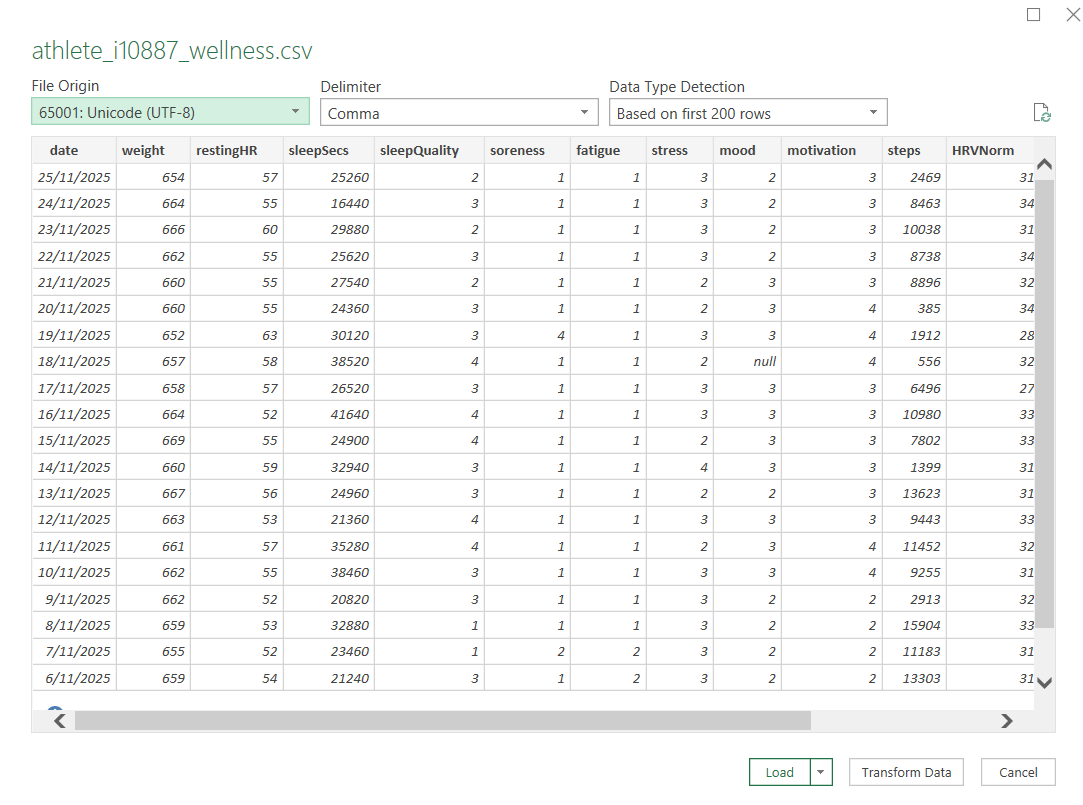
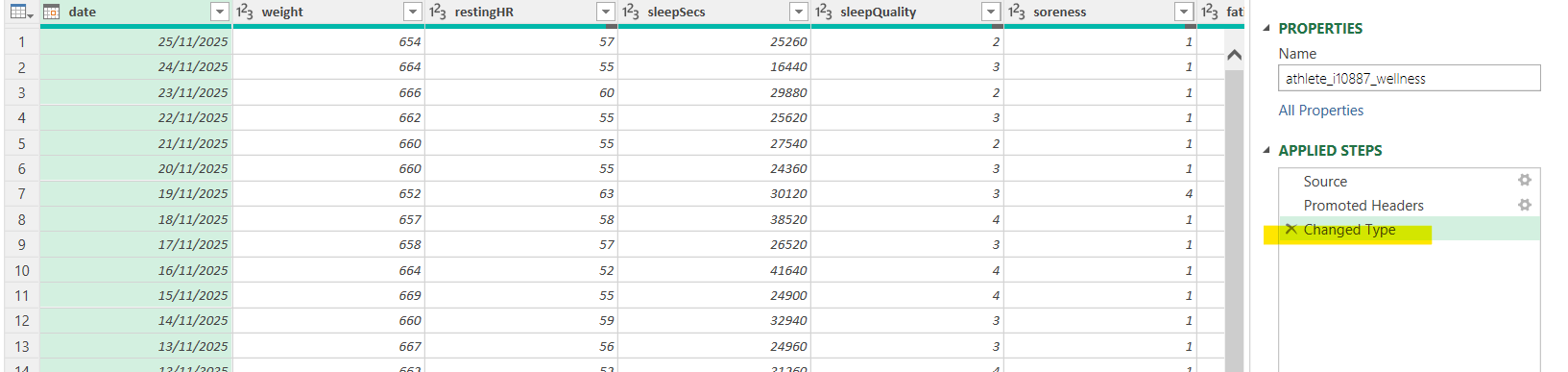
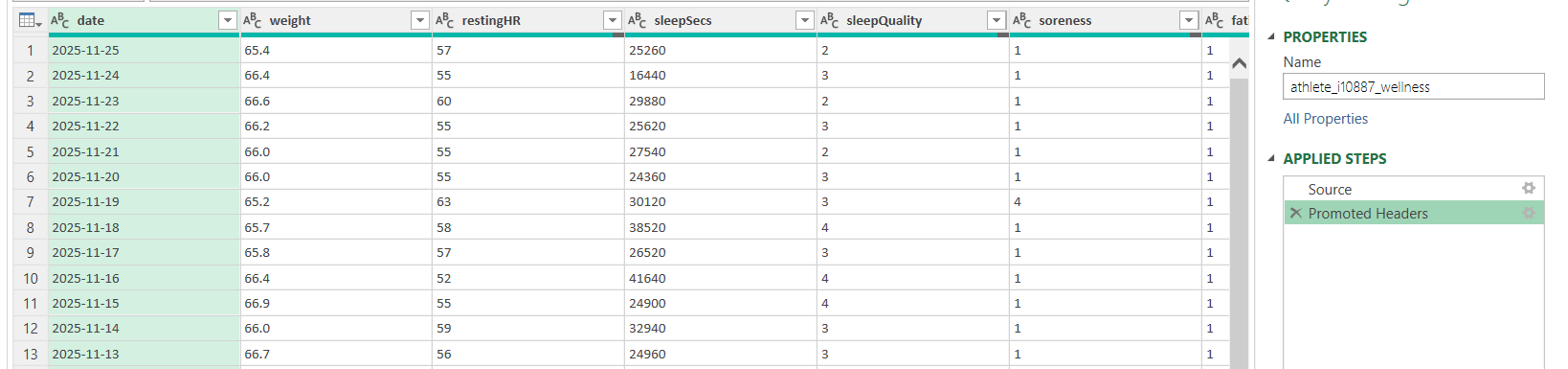
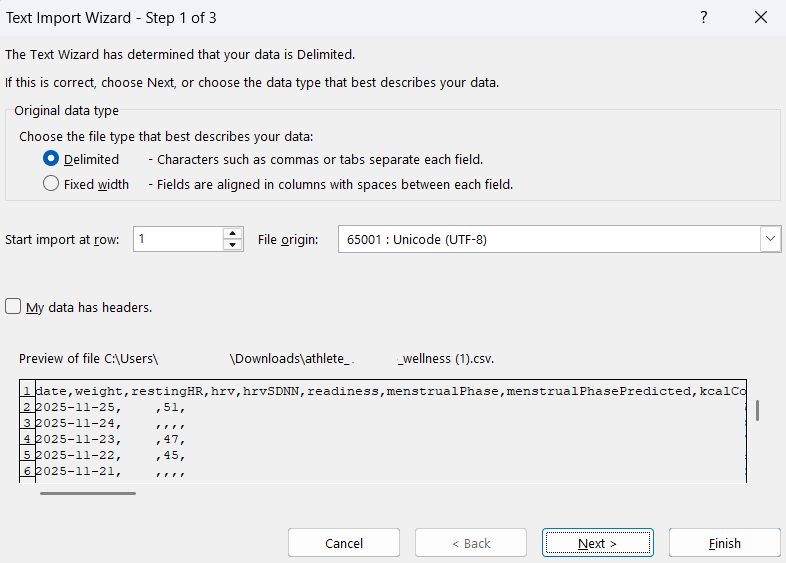
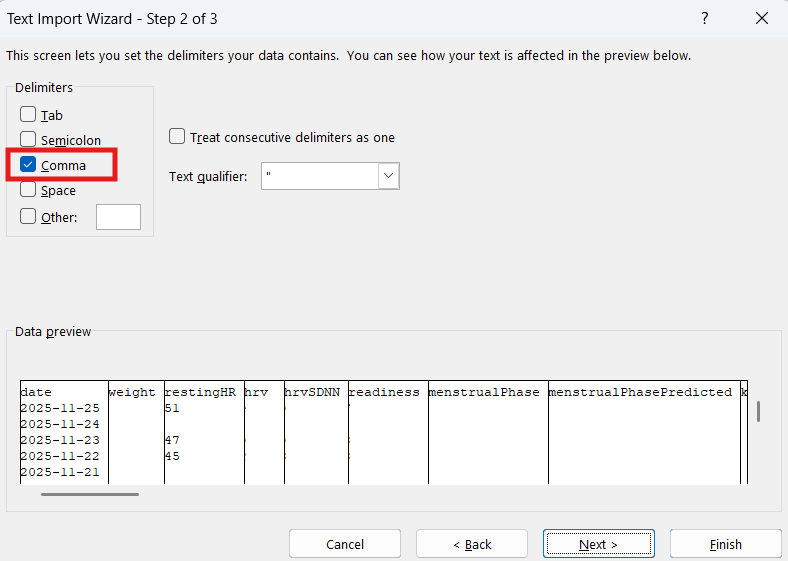
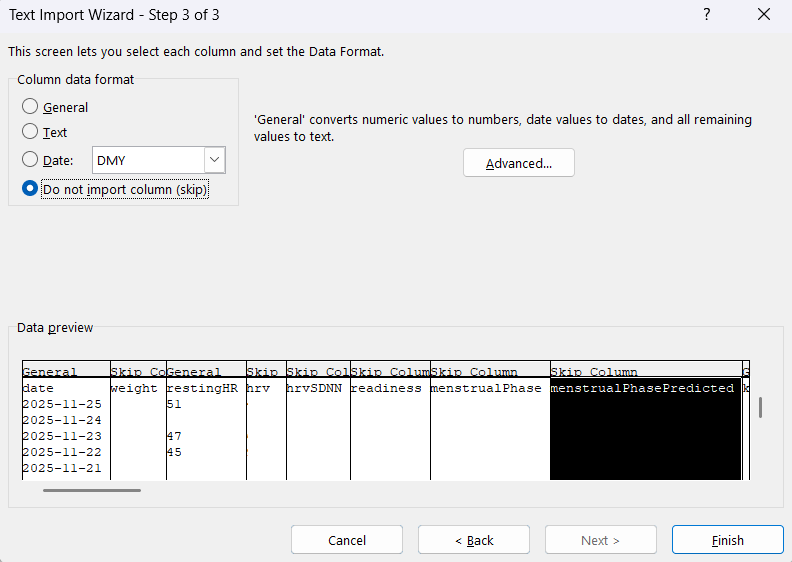
Don’t open the csv directly in Excel. Open an empty sheet and then choose ‘Data’ menu - From Txt/CSV. You will get a preview like this (can differ depending on your locale settings)
Edit what needs to be edited and then save as ‘csv’.
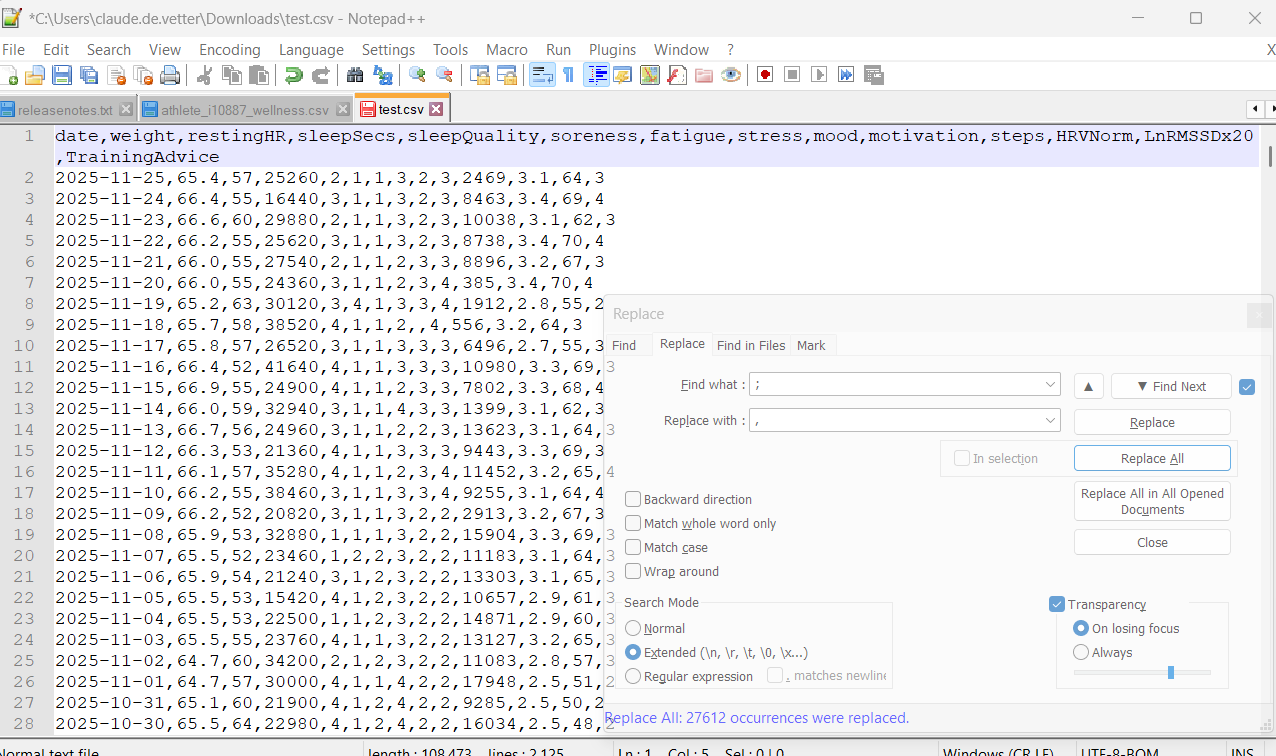
Depending on your locale settings, there can still be something wrong. In Europe for example, the limiter for csv files is a semi-colon ; and not a comma. Easiest way to solve that is to open the csv with a pure text editor and do a Search/Replace to replace every semi-colon by a comma.
When it looks like this in a pure text editor, you can upload the csv.
Option 2
I get a different experience when downloading, and this works, for me, in Chrome and Brave.
So as you can see, there are 3 ways shown how to get around opening the file as an Excel document.
Follow the steps 1-3 as mentioned.
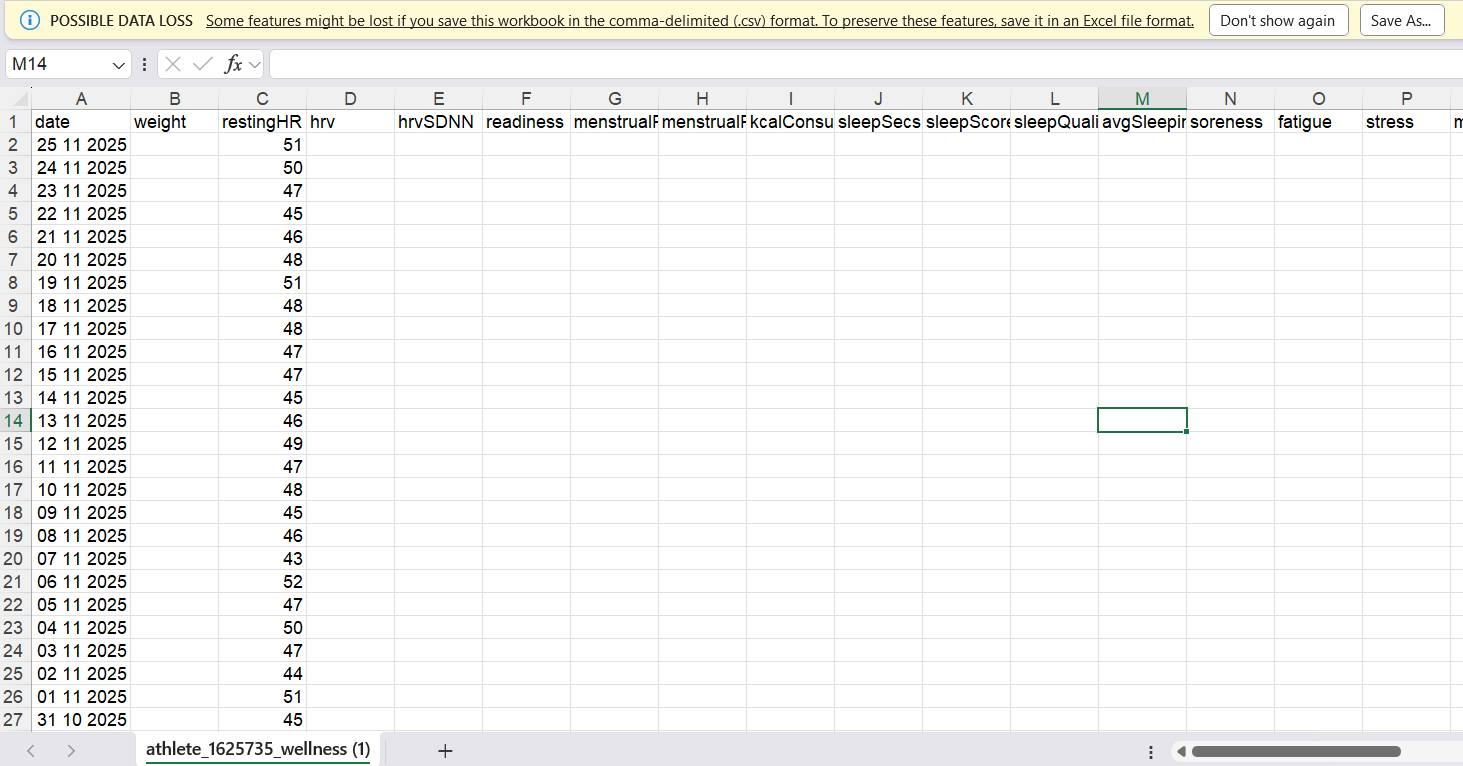
Step 4 shows the download at the top right corner of the browser. If click on it (5), it opens the CSV file as below (I deleted the columns with other data, to show only the relevant data.
The column width is less than the actual width,so you will see ######
The date is also dd mm yyyy which won’t work if you import.
Also, notice the warning at the top, indicating the CSV file is open.
Thanks Guys, @Gerald@MedTechCD
I eventually managed to follow @MedTechCD 's instructions. It took a few goes, as I realised I was using an activities download, rather than a wellness download. Its not an obvious process, but got there in the end. Thanks
Is this actually documented anywhere? or do people find the answer on the forum now.
 What on earth am I doing wrong?