Recently, I started using AI to do some sort of basic analysis of my activities. I find it useful because it quickly checks whether or not the activity is in line with the planned workout/race, how HR evolved compared to power, etc.
My typical workflow at the moment is this:
Open the activity
Copy/paste the information available at the top of the screen (everything between “date and time” and " CHO In g")
Copy/paste data about power zones
Copy/paste data about HR zones
Copy/paste the intervals table in the “Data” tab
I think it would be great to have a button to do that automatically, copying the whole recap to the clipboard so that it can be easily pasted to any AI application.
I know there is the possibility at the moment to export the activity as CSV, but I find the described approach easier both for users and AI applications, as they typically take a little longer to process uploaded files and may also have quotas on how many uploads can be made.
If there is any way I can contribute to this somehow, I would be more than happy to do so!
As this feature request doesn’t look very popular at the moment, I developed a basic extension that adds a “JSON to clipboard” button on every activity page.
Once clicked, the activity data is exported to the clipboard in JSON format.
It is way better than my previous manual approach, as the AI can now analyze every piece of information.
The extension is currently available on GitHub, but I will publish it to the Chrome Web Store as soon as possible.
Nice, no need for this myself but inspires me to wrap a bunch of my common custom bits for various sites into my own extension.
I use bookmarklets a lot, so the above could be changed to this for example
javascript:(async()=>{try{const id=location.pathname.split("/").pop();const url=`https://intervals.icu/api/activity/${id}`;const r=await fetch(url);if(!r.ok)throw new Error(`API request failed: ${r.status}`);const j=await r.json();await navigator.clipboard.writeText(JSON.stringify(j, null, 2));console.log("Activity JSON copied to clipboard");alert("Activity JSON copied to clipboard");}catch(e){console.error(e);alert("Failed to copy activity JSON. See console.");}})();
N.B. if you copy and paste direct into the address bar your browser might drop the javascript: section, so that will need typing, not an issue if you create a bookmark though.
Just finished a Join.cc to Intervals extension, had previously been doing it in python but needing to copy cookies across. Benefit of an extension is is can access them, whereas bookmarklets can’t.
Thanks a lot great idea. I think a lot of us are doing what you were initially doing I’ll wait feedback from community and might try your extension. I’m not familiar with installing and using extensions in Chrome… Out of curiosity, which AI tools do you use, in other words what works the best for you, based on the information pasted? Do you need to feed in any other info from other Intervals screens? Thanks for the work on this.
I started some months ago with ChatGPT. I provided a recap of information about me (age, weight, height, level of training, data about past activities, etc.), then I asked to provide a training plan for the next few weeks to improve my FTP.
It provided a high-level plan, then, every day, I ask for the detailed table (segments with duration, power, and cadence). Initially, I manually created the training to use it with MyWhoosh, later I created a separate chat where I ask to convert the table into a JSON file, so that it can be easily imported automatically.
At the end of each training session, I go to Intervals.icu, export data, and paste it to ChatGPT to analyze the performance. Based on the result, the AI eventually suggests changes to the plan.
Version 0.2.0 is now available. In addition to the general activity data exported before, this new version includes detailed information about each interval, which can be very useful during the analysis.
i install it from chrome web store!! It’s a very good idea, I run the version 0.0.2
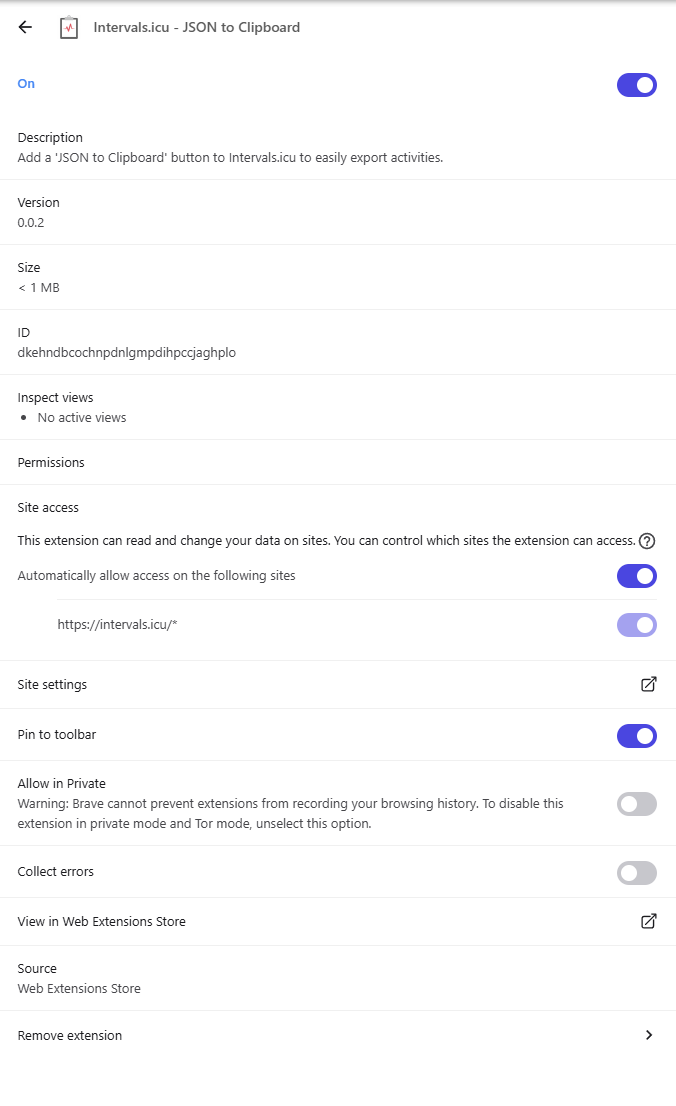
I have an issue! When I leave intervals.icu, the extension is disabled..so i have to open it and change the status from site access and reload the page
On my side, I noted that sometimes I need to refresh the activity page to make the “export” button appear, but I never had to touch the extension settings.
Can you please check if you have the same settings I have on my browser from the attached screenshot?
What do you mean by “disabled”? Is it the first toggle at the top of the settings (ON/OFF)?
Can you try refreshing without touching anything else and see if it appears?
I installed the extension, thx for sharing. It works as well . What is the difference to the CSV Data export and putting the CSV into Copilot for analysis?
Are you referring to the CSV download button that is available to export several activities at once?
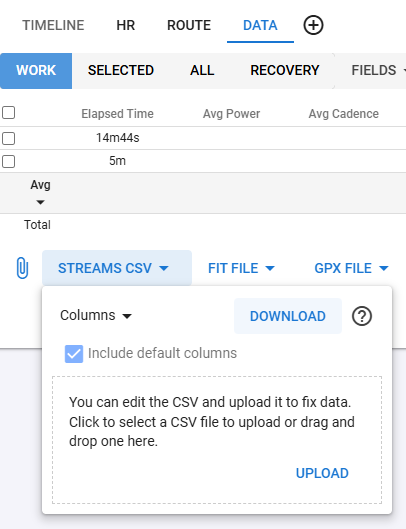
That button basically exports a table containing a summary for each selected activity (e.g., time, distance, average values, etc.), while the JSON export button provided by this extension extracts all the available information, including intervals detected during the activity, power and HR zones, and other detailed metrics.
About the need of refreshing the page to make the button appear, it looks like the same bug reported by @dimitrios_adraktas, unfrotunately I didn’t have time to investigate and fix, hope to do so at any time soon!
“Why the copy-paste JSON doesn’t replace “the CSV data”
Your JSON does specify which stream types exist (stream_types), but it doesn’t contain the actual row values per second. Those are in the CSV (thousands of rows) — e.g. every second: HR, distance, altitude, speed. [i137894183_streams | Excel]
Best approach (for me, minimal effort for you)
Copy-paste JSON/header → great for context/meta data (Load, TRIMP, Device, Zones, Splits).
Streams as CSV upload → necessary for proper analysis (topography, pacing cost, drift patterns, stop-and-go). [i137894183_streams | Excel]
In short: The JSON block is a summary + metadata. The Streams CSV is the reality, second by second. Both together are ideal — but for “hill efficiency/gradient analysis”, the CSV is the core.”
I got it now! The Streams CSV download provides a “raw” file containing the original data registered by your device (e.g., bike computer, smartwatch, etc.). This is basically the input used by Intervals.icu to generate the activity report page.
The JSON export, on the other hand, provides recap data generated from the analysis of the raw CSV.
As an example, you can see that the Streams CSV file doesn’t contain power and HR zones, intervals, metrics related to normalized power, calories, fitness, fatigue, etc.
From my point of view, they can be used for different purposes:
Streams CSV - Use it when you need to re-analyze the activity from scratch; if you pass it to Copilot, basically, it would need to re-do the same analysis already performed by Intervals.Icu, but it would be tricky as the file is typically hundreds of kilobytes, and the AI may have quite a hard time handling the whole context.
JSON Export - Use it when you want to make a higher-level analysis, as the AI is your actual coach, and you want to check if the activity reflected the training plan, how you performed, where you can improve, etc. The JSON export is typically 90% smaller than the Streams CSV, making it easier for the AI to handle the context.
Copilot can handle files from long rides over 10 hours and the csv normally contains the following values, if you have the sensors activated: “time,watts,cadence,heartrate,distance,altitude,lat,lng,velocity_smooth,torque,left_right_balance,core_temperature,skin_temperature,heat_strain_index,secondary_power”
What copilot cannot realiably do is recognize intervals as you mentioned. Can the AI analyse climbing efficency, coasting and so on from your json export? According to Copilot it can not.
The best way might be to import your json first, then the csv for validating and deeper analysis, what do you think?
I see that the Intervals.icu activity page already provides the coasting field, and if it’s what you are looking for, it would be available for the AI to be processed when exporting the JSON file.
Not sure about the climbing efficiency though, I see the activity page mentions a generic efficiency field, but I guess that it’s generic, calculated for the whole activity, not split by climb.

 I’ll wait feedback from community and might try your extension. I’m not familiar with installing and using extensions in Chrome… Out of curiosity, which AI tools do you use, in other words what works the best for you, based on the information pasted? Do you need to feed in any other info from other Intervals screens? Thanks for the work on this.