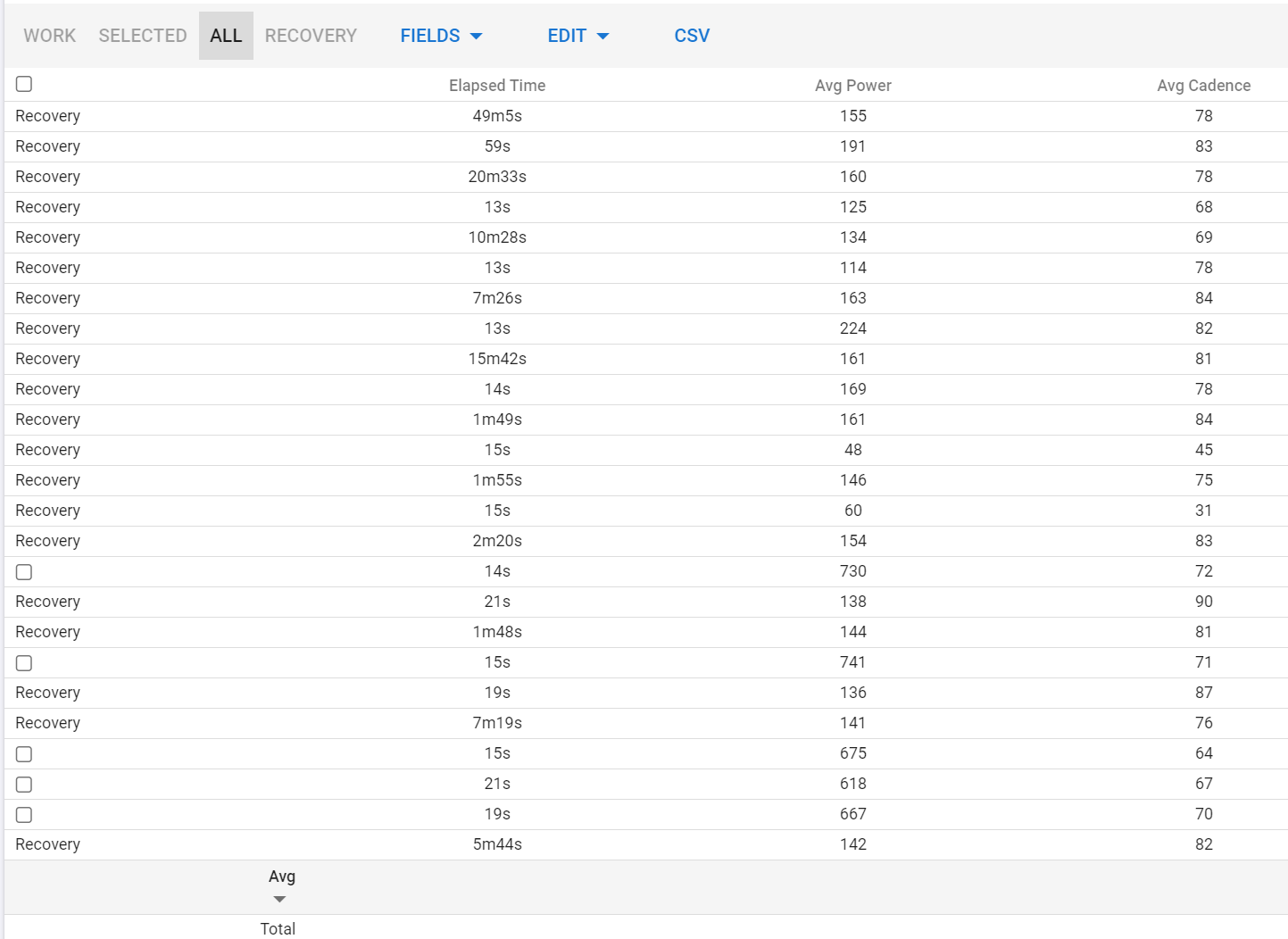
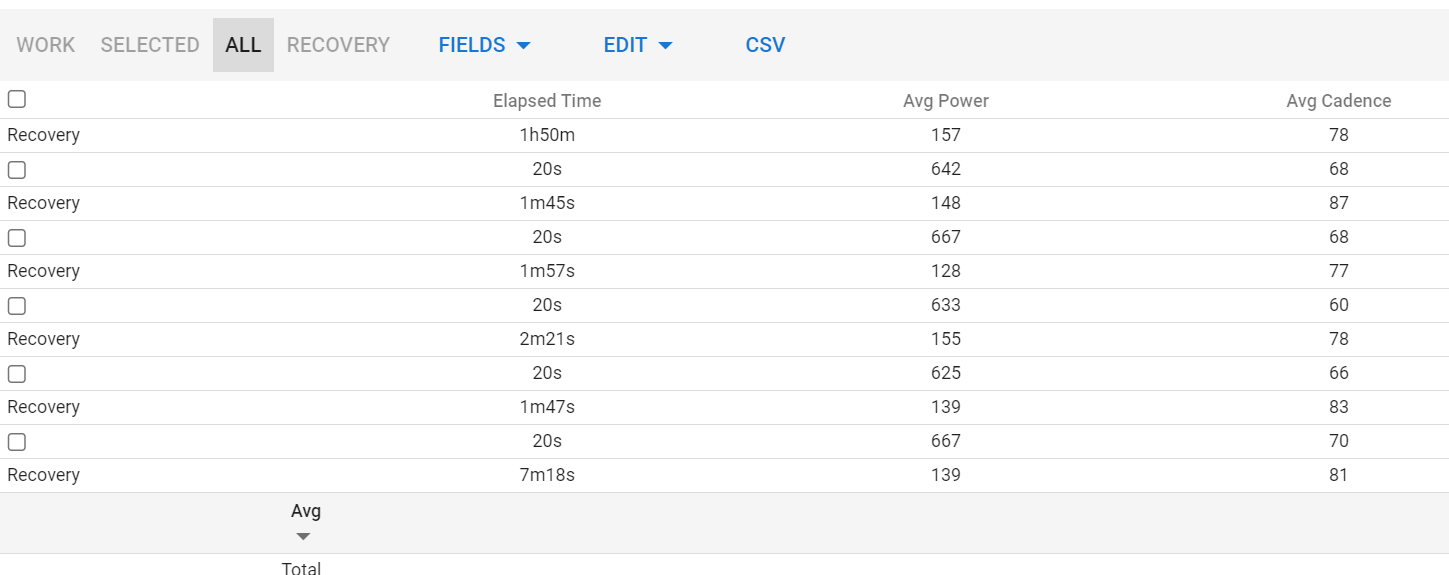
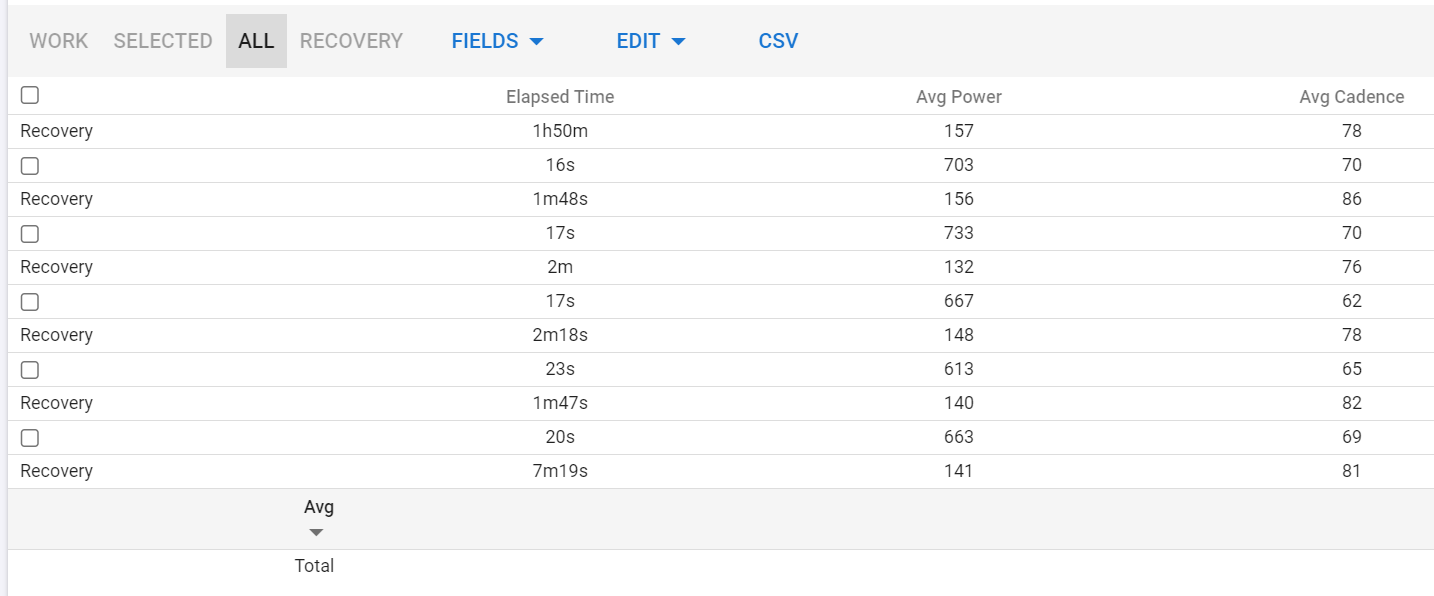
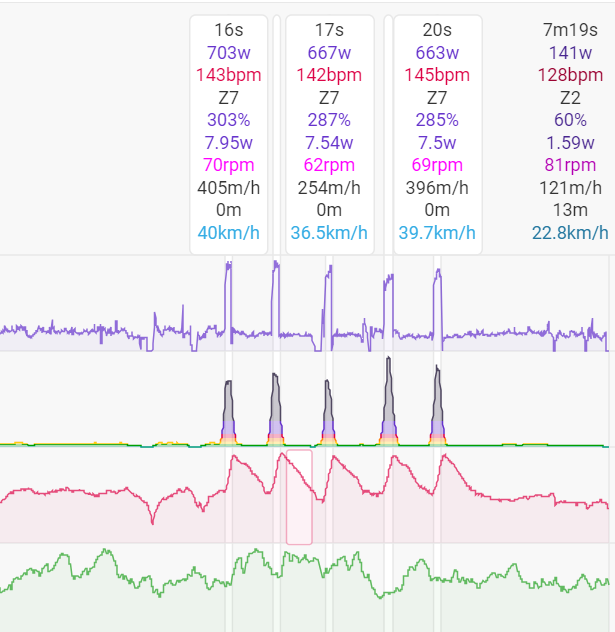
Should only be the 5 anaerobic Intervals at the end of the activity.
Can I somehow remove all those bogus “Recovery”? (as I can’t select them like normal work Intervals)
Maybe a Bug that they can’t be selected for removal?
As soon as you create one work interval, anything outside of that interval is considered ‘not-working’ and falls under the Recovery group. Intervals only has two types, Work or Recovery.
You can define 2 Work intervals right next to each other. So if you want the ‘real’ recovery to stand out from the rest, define an interval for it and label it accordingly.
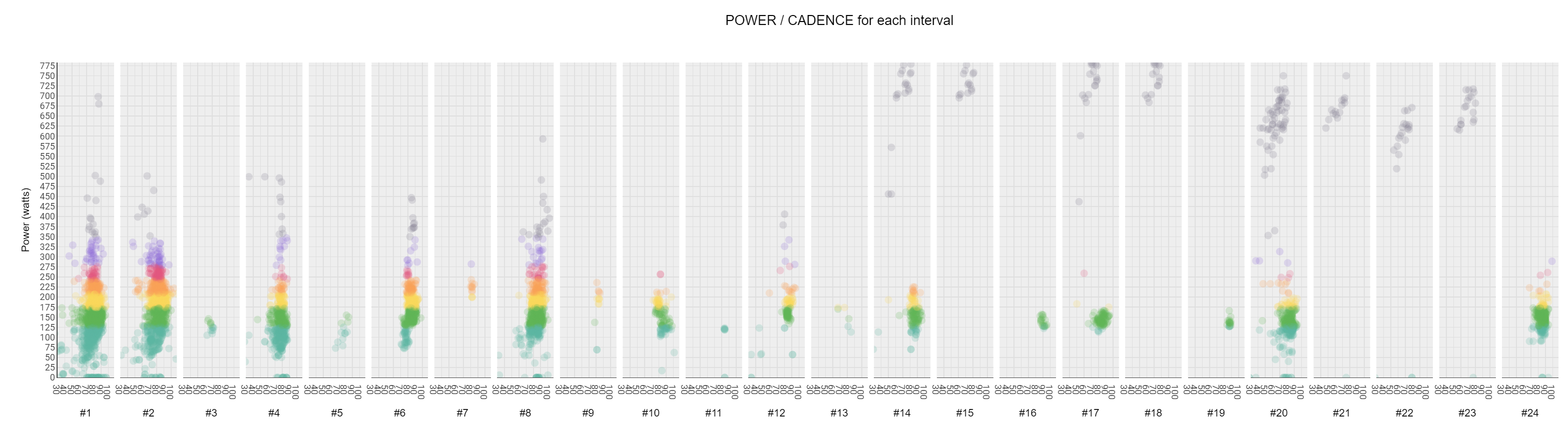
For the chart showed below: this custom chart isn’t making any difference between Work or non-work and shows plot for every interval, be it recovery or work. The title of the chart says it all: Power/Cadence for every interval.
The script should/could be adapted to only show plots for Work intervals by inserting an IF section.
So it’s not a bug, it’s by design.
thx for your answer - but why are there 17 Recovery Intervals next to each other - shouldn’t they be shown as one as there are no Work Intervals anywhere near them??
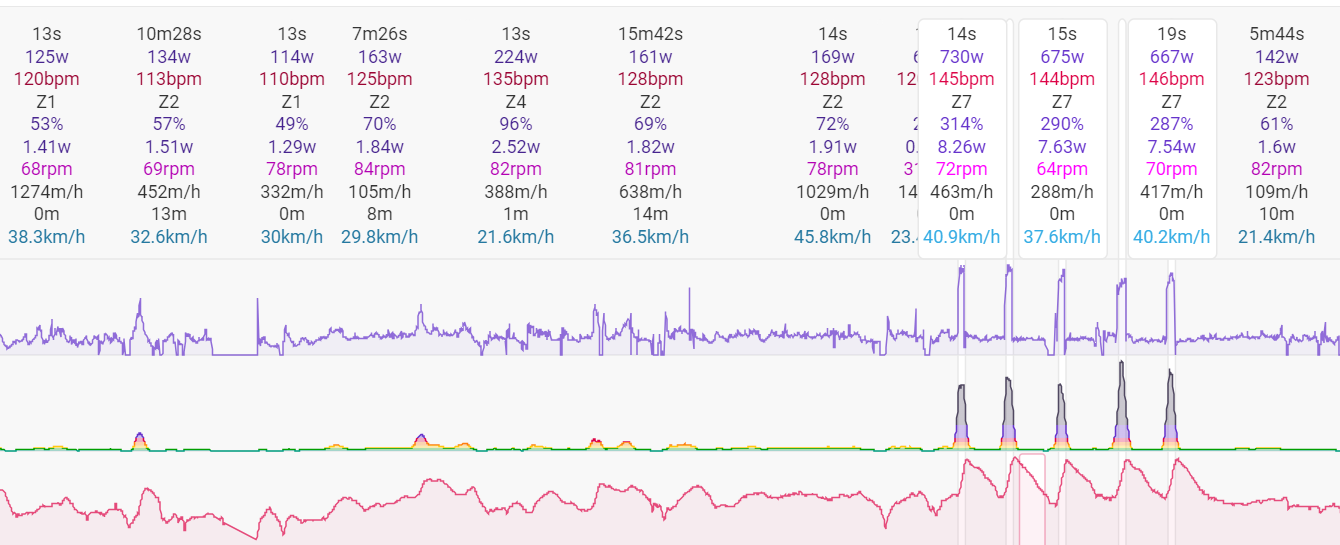
The screenshot shows an activity where those 5 intervals should be quite easily detected by the app.
From the Actions menu, select Clear Intervals. Then again on the Actions menu, select Analyse and deselect all checkboxes. There might be some intervals detected with higher Power around the middle, but you should roughly have something usable.
Are your rides set to be analysed with interval auto-detection or with the ‘Use Laps’ option? Some device have laps with an intensity designation. Maybe your device has Auto-laps?
“Use laps for intervals” is deactivated for Bicycle, Intervals Setting: Power, HR, Pace.
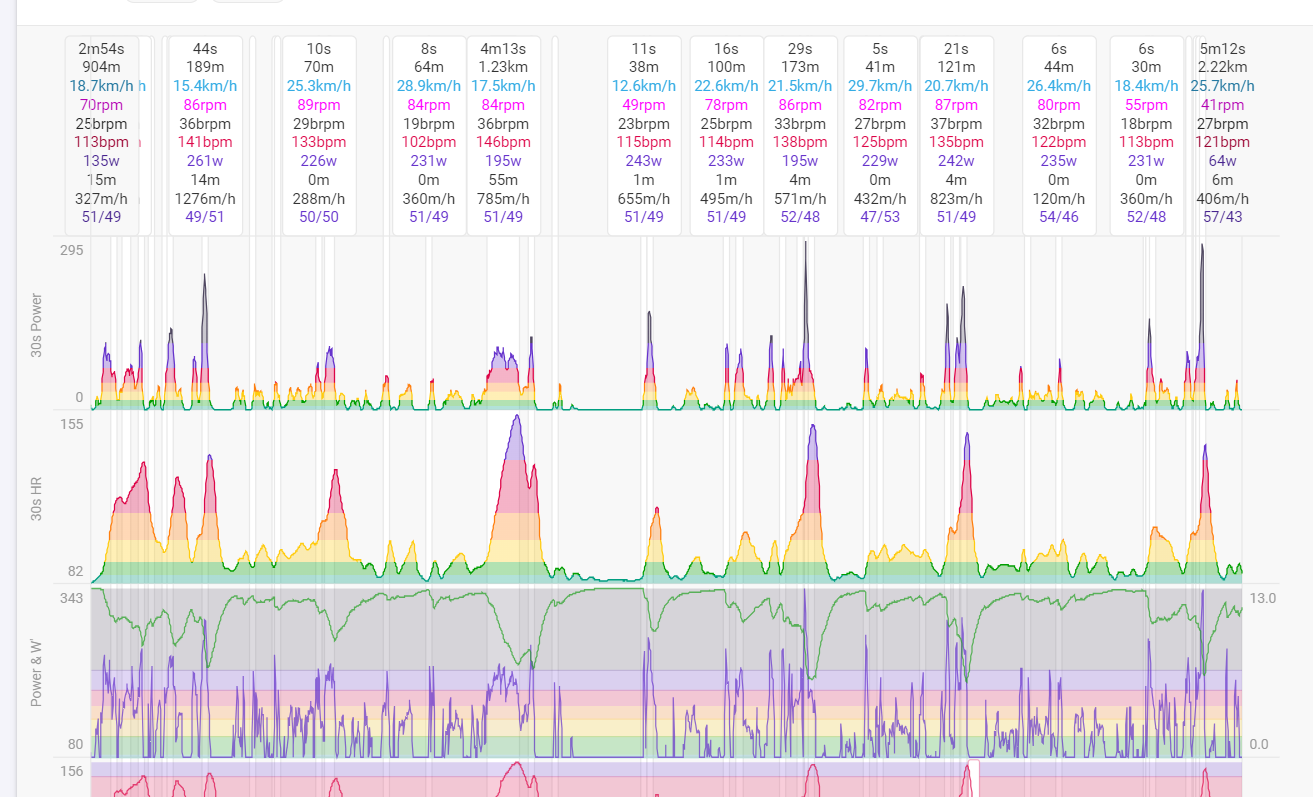
What puzzles me are those 17 “Recovery” Sections without a single “Work” Interval in the first 1,5 hours. Shouldn’t “Recovery” be only possible between Work Intervals?
I’ve tried Clear Intervals & afterwards again “Analyze” with all checkboxes unchecked.
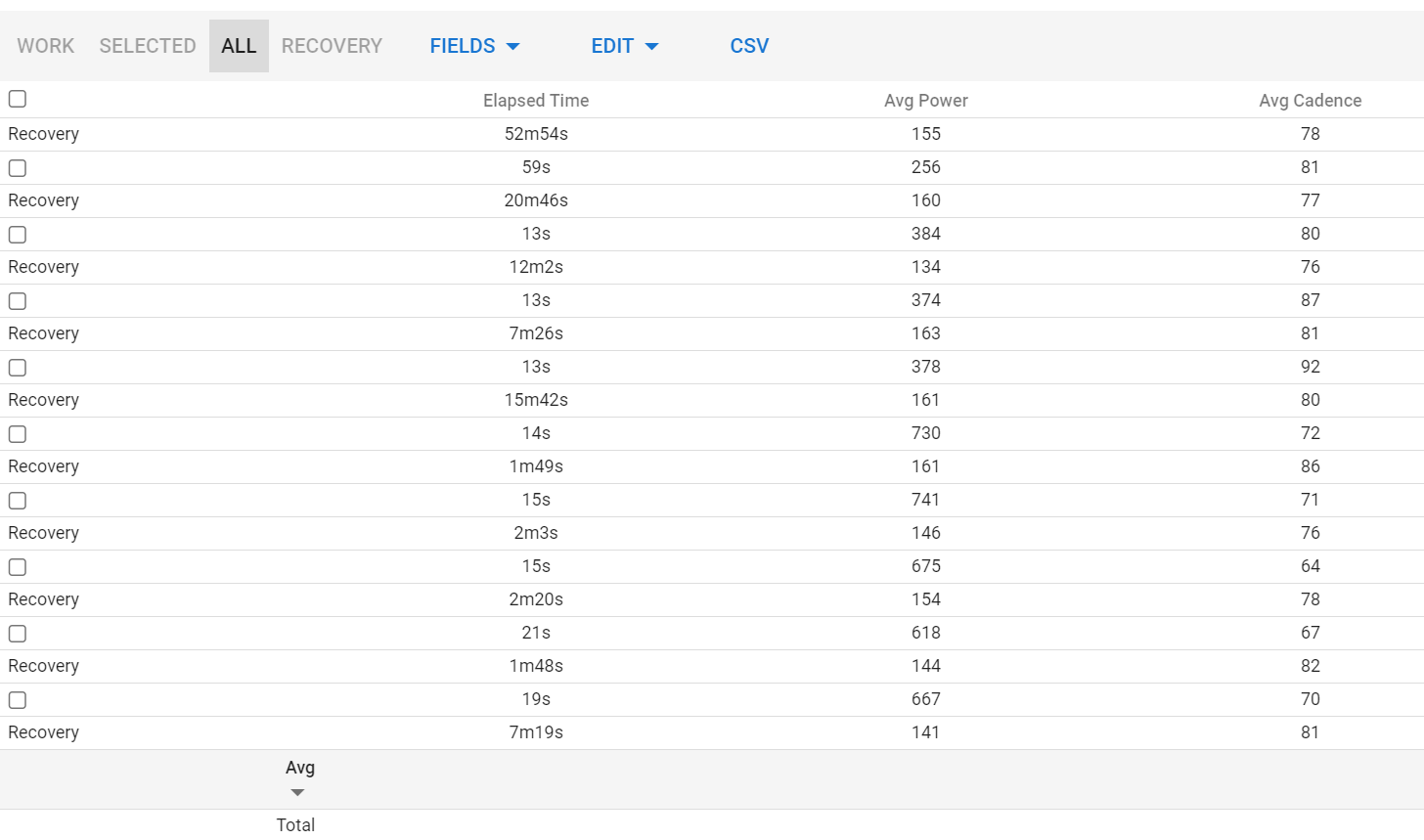
What I’ve done now - Clear Intervals - Action “Find Intervals” and there did a search for 20s Intervals - then I was able to only select the real Intervals and the rest stays “Recovery” as it should!
Only problem - now all Intrervals are excactly 20 seconds long - even they vary from 12 - 18 seconds
What would be nice: If there are multiple Recovery Intervals next to each other - without Work Intervals inbetween - that the Recovery should be groupped together and not stay there as several Recovery Intervals.
ok just noticed how I can modify each Interval Length / Start / Stop and matched the actual intervals now. Still pretty new to intercals.icu and it got a pretty steep learning curve … but it’s really a great tool!
That is normal behaviour. Auto-detection looks for parts that could be considered efforts and marks those as Work intervals. In between two Work intervals, everything is ‘Recovery’. That’s just how the auto-detection works. If you see Work intervals that you don’t consider correct, the fastest and easiest is to put your mouse cursor within the interval and hit the D key. The interval will be deleted and will result in one bigger recovery interval. Same goes for a Work interval that was detected too short. Drag the edges of the work interval to make it bigger. If you get to an adjacent second work interval, they will be merged to one bigger Work interval.
I just had never seen adjacent Recovery intervals before and I don’t know why that happened. That’s why I did not fully grasp your first post. It became clear when you posted the screenshot.
Here’s one from my WE ride that I have not edited yet, fully auto detected. You can see that there are never adjacent recovery Intervals. There are 2 adjacent Work intervals and that is because the effort was fairly stable in both but significantly different in Power output.
Exactly, I don’t know why yours came in with adjacent recovery intervals. You might need to send the original FIT to @david, so he can have a look why this happened.
You can click on the header to bring up a dialog where you can edit the interval or you can drag the edges of an interval.
You can add/delete/merge/split an interval with the A/D/M/S key.
Once you get the hang of this, it’s fast editing.
If you need multiple adjacent intervals, it’s faster to first make one big interval and then just split it in the different parts. That’s easier then making 3 or 4 adjacent ones.