I am sure I am missing something, but after adding charts to the compare page, I cant find how to remove them. So I now have three identical charts on the page! I have dragged the mouse all over looking for a delete icon or something to appear, right-click just brings up the standard browser choices like Save Page As, view page source, screenshot, etc.
are you looking for the “remove unselected” option?
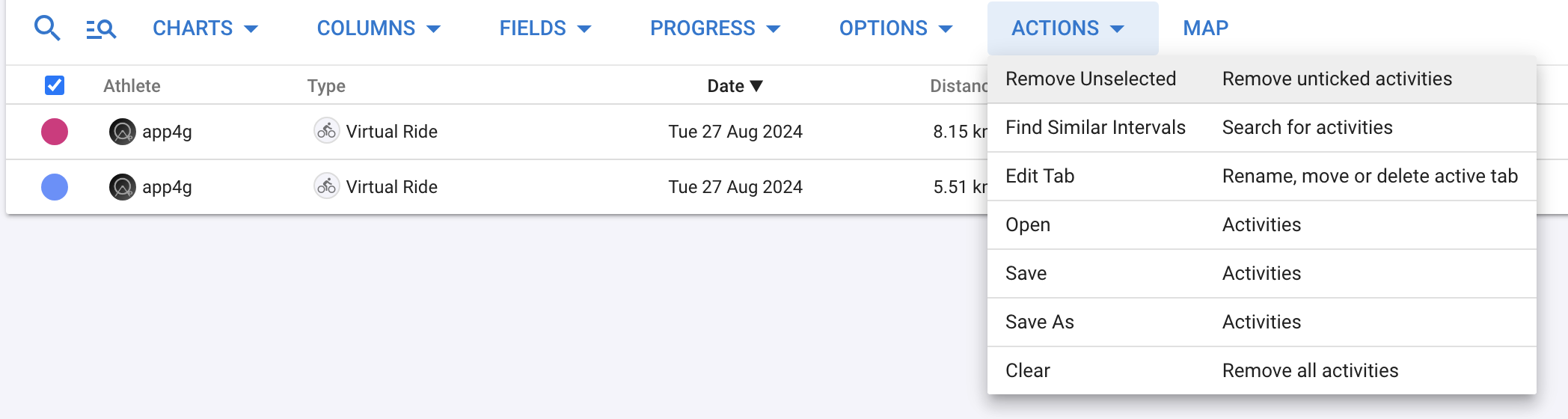
right now, both rows are selected(filled red and filled blue circle), you can click on the red, and it will become a hollow red circle (unselected)
then remove unselected.
Are you referring to the Compare page, or compare activities page?
Based on your description, it appears to be the former.
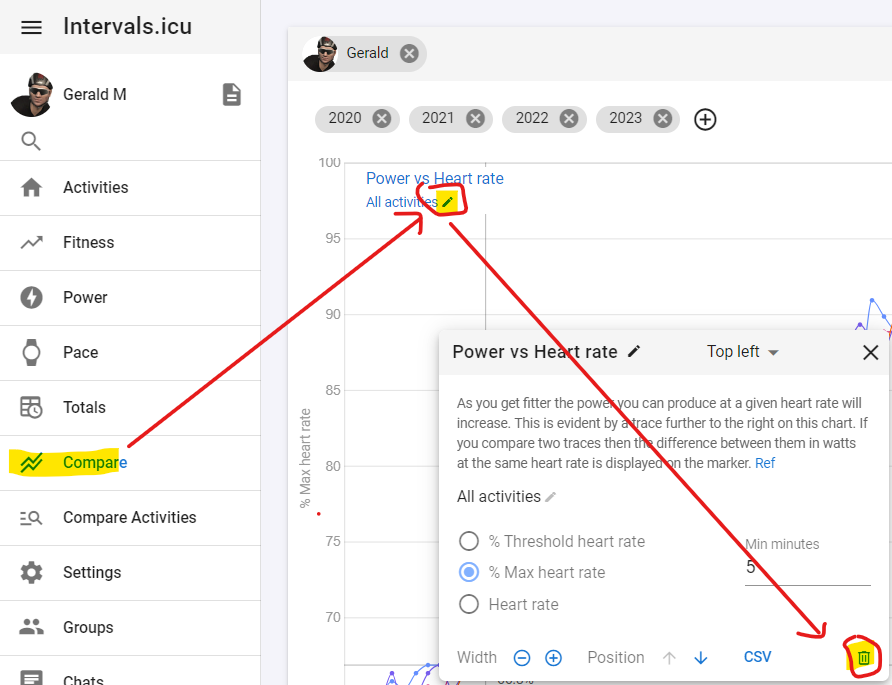
Click on the pencil icon, then delete (bottom right).
1 Like
Yes, you nailed it! Thanks. But seems, to me this is a pretty obscure place to put the delete/remove chart option! Why not in the bottom right corner of the graph where I dont have to go looking for it?
If it’s important to a lot of people, perhaps a feature request needs to be raised.